
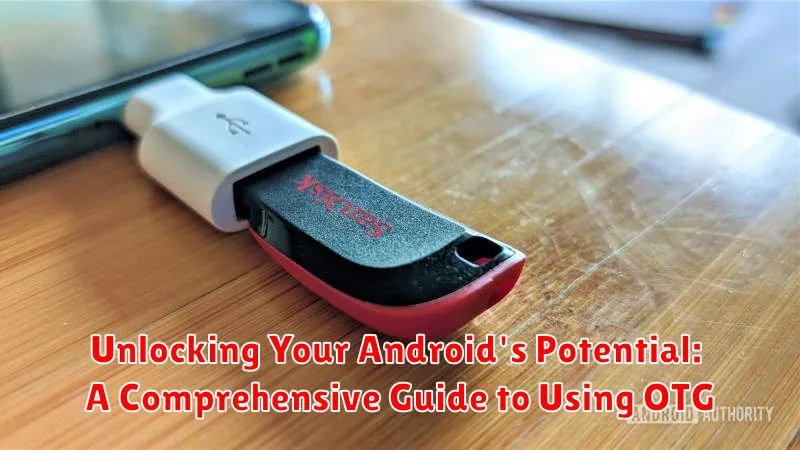
Do you want to expand the capabilities of your Android device? OTG, or On-The-Go technology, allows you to connect a wide variety of peripherals directly to your phone or tablet, transforming it into a powerful productivity tool. This comprehensive guide will unlock the hidden potential of your Android by exploring the world of OTG and demonstrating how to effectively utilize it. From connecting USB drives and game controllers to using keyboards and mice, discover how OTG can simplify your digital life and unleash the full power of your Android device. Learn about OTG compatibility, troubleshooting common issues, and exploring a multitude of practical applications.
This guide serves as your one-stop resource for everything OTG related. Whether you’re a tech novice or a seasoned Android user, understanding On-The-Go technology can significantly enhance your mobile experience. Explore the benefits of OTG, learn how to check for OTG support on your device, and master the techniques for connecting various OTG accessories. This article provides a deep dive into the world of Android OTG, empowering you to take full advantage of this versatile technology and transform your device into a true mobile powerhouse.
Understanding OTG and Its Benefits
OTG, or On-The-Go, is a powerful standard that significantly extends the functionality of your Android device. It allows your phone or tablet to act as a host, meaning it can connect to and power various USB peripherals. Think of it as transforming your Android into a mini-computer.
The core benefit of OTG lies in its ability to bridge the gap between your Android device and the world of USB accessories. This opens up a multitude of possibilities.
Key Advantages of Using OTG:
- Expanded Storage: Connect external hard drives or flash drives for additional storage capacity.
- Direct File Transfer: Easily move files between devices without a computer.
- Peripheral Connectivity: Use keyboards, mice, game controllers, and more.
Essentially, OTG grants your Android the power to control and interact with a wider range of devices, offering a more versatile and productive user experience.
Checking OTG Compatibility on Your Android Device
Before diving into the world of OTG, it’s crucial to verify if your Android device supports this functionality. There are several ways to determine compatibility.
Physical Check
The simplest method is to visually inspect your device’s charging port. While not foolproof, many OTG-compatible devices have a slightly different port shape. A subtle trapezoidal shape may indicate OTG support.
Software Check
Several apps available on the Google Play Store can quickly confirm OTG compatibility. Search for “OTG checker” and download a reputable app. These apps test for the necessary hardware and software components.
Manufacturer Specifications
Refer to your device’s user manual or the manufacturer’s website. Searching for your device model online alongside “OTG support” will often reveal definitive answers. Look for explicit mention of USB OTG or On-The-Go support in the specifications.
Connecting OTG Devices to Your Phone or Tablet
Connecting a device via OTG is generally a straightforward process. First, ensure your Android device is powered on. Then, simply plug the OTG adapter into your device’s charging port. Next, connect your external device, such as a USB drive or a keyboard, to the adapter’s female USB port.
Your Android should automatically detect the connected device. A notification might appear indicating a successful connection. If not, check your file manager application, which should display the connected device.
Important Note: Some devices might require specific software or settings adjustments for OTG to function correctly. Consult your device’s user manual if you encounter any difficulties.
While most devices utilize a standard micro-USB or USB-C connection for OTG, some older models might use a proprietary port. Ensure you are using the correct adapter for your device. Incorrect adapters can damage your device’s charging port.
Transferring Files Between Your Android and External Storage Using OTG
One of the most common uses of OTG is transferring files between your Android device and external storage devices like USB flash drives and external hard drives. This process is generally straightforward.
First, connect the storage device to your Android device using an OTG cable. Your device should automatically detect the connected device. A notification usually appears, allowing you to access the files on the external storage.
You can then use a file manager app (either a pre-installed one or one downloaded from the app store) to manage the files. Copying, moving, and deleting files works much like it does on a computer. Select the files you wish to transfer, choose the destination folder on either your Android device or the external storage, and initiate the transfer.
Important Note: File transfer speeds depend on factors including the OTG cable, your device’s USB port speed, and the read/write speeds of the external storage device.
Using OTG for Gaming and Entertainment
OTG opens exciting possibilities for gaming and entertainment on your Android device. Connect a gamepad or controller for a console-like gaming experience. This significantly enhances precision and control, especially for complex games.
Expand your media library by directly connecting external storage devices loaded with movies, music, or photos. Enjoy your content directly from the source without consuming valuable internal storage space on your device.
Some Android devices even support connecting USB DACs (Digital-to-Analog Converters) via OTG. This allows you to use high-quality headphones for a superior audio experience while gaming or enjoying your media.
Troubleshooting Common OTG Issues

While OTG offers seamless connectivity, users occasionally encounter issues. This section addresses common problems and provides troubleshooting steps.
Device Not Recognizing OTG Device
If your Android device doesn’t detect the connected OTG device, try these solutions:
- Check the cable: Ensure the OTG cable is functioning correctly. Try a different cable if possible.
- Restart your device: A simple reboot can often resolve temporary software glitches affecting OTG functionality.
- Check power supply: For power-hungry devices, ensure sufficient power. Your phone’s battery might not be enough. Consider using a powered OTG hub.
File Format Incompatibility
Sometimes, the connected device’s file system might not be compatible with your Android device.
- Reformat the drive: Try reformatting the connected storage device to a compatible format like FAT32 or exFAT. Important: This will erase all data on the drive.
- Use a file manager app: A robust file manager app may offer broader file system support.
Exploring Advanced OTG Capabilities on Android

Beyond the basics of connecting flash drives and peripherals, OTG offers a range of advanced functionalities that can truly unlock your Android device’s potential. These capabilities often go unexplored but can significantly enhance your productivity and entertainment experience.
Controlling External Devices
OTG allows for direct control of certain external devices. For instance, you can connect a MIDI keyboard to create music on the go, or use a game controller for a more immersive gaming experience. This expands the possibilities of your device beyond its touchscreen limitations.
Direct File Transfer Between Devices
While transferring files via a computer is common, OTG enables direct device-to-device file transfers. Connect two Android devices via OTG to conveniently share files without intermediaries. This proves particularly useful when sharing large files quickly and efficiently.
Running Portable Applications
With OTG, you can run portable applications directly from a connected USB drive. This eliminates the need to install them on your device’s internal storage, conserving valuable space. This feature is especially beneficial when using specialized tools or software infrequently.
Top OTG Accessories to Enhance Your Android Experience
Expand your Android device’s functionality with these essential OTG accessories.
Storage Solutions
Quickly transfer files or expand storage capacity with OTG-compatible flash drives and external hard drives. Choose a drive with ample storage to suit your needs, keeping in mind the power requirements for larger drives. Consider drives with both USB-A and USB-C connectors for maximum compatibility.
Input Devices
Transform your Android device into a workstation with keyboards and mice. Improve productivity with a full-sized keyboard or opt for a compact, portable option. Enhance gaming precision with a dedicated gaming mouse.
Gaming Controllers
Enjoy console-like gaming by connecting a USB gamepad or controller via OTG. Look for controllers with a comfortable design and responsive buttons for a seamless gaming experience.
Audio Enhancements
Elevate your audio experience by using USB DACs (Digital-to-Analog Converters) and headphones. Enjoy high-fidelity sound from your Android device with improved clarity and depth. Choose a DAC that supports your desired audio format.
