
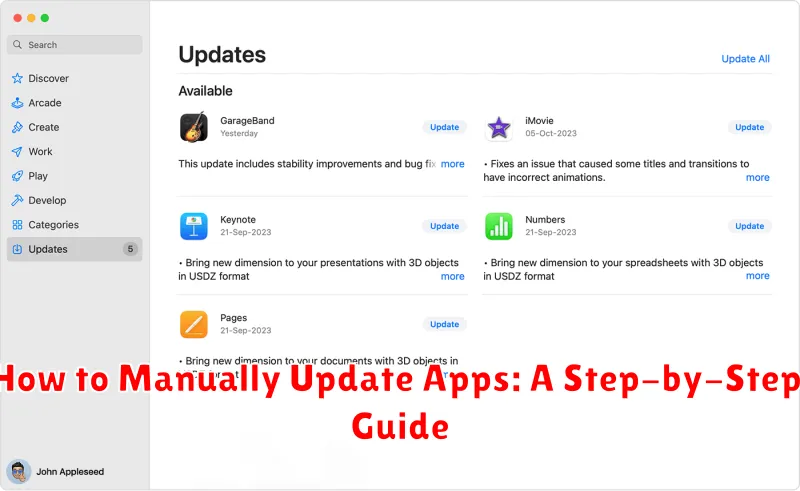
In today’s fast-paced digital world, staying up-to-date with the latest app versions is crucial. Manually updating apps ensures you have access to new features, improved performance, and enhanced security. This comprehensive guide provides a clear, step-by-step approach on how to manually update apps on various devices, empowering you to take control of your app updates and enjoy the best possible user experience. Whether you’re using an Android device, an iPhone, or a computer, this article equips you with the knowledge to update apps manually with ease.
Tired of waiting for automatic updates or experiencing compatibility issues? This guide is your solution. Learn the precise steps for manually updating apps on different platforms, including Android, iOS, and desktop operating systems. Discover the benefits of manual app updates, such as selecting specific apps to update and controlling data usage. By mastering the art of manually updating your apps, you can maintain optimal device performance and ensure your applications are always equipped with the latest functionalities and security patches.
Why Update Apps Manually?
While automatic updates are generally convenient, there are several reasons why you might choose to update your apps manually.
Control over data usage: Manually updating allows you to choose when and where to download updates. This is particularly useful if you have limited data or prefer to update only when connected to Wi-Fi.
Troubleshooting issues: If an automatic update causes problems with an app, manually updating can offer more control over the process, potentially allowing you to revert to an older version or pinpoint the issue more effectively.
Selective updates: You might not want to update all your apps at once. Manual updates give you the granular control to choose which apps to update and when, prioritizing essential apps or those with important new features.
Testing beta versions: Some apps offer beta versions with new features for testing. These often require manual updates to access and provide valuable feedback to developers.
Device limitations: Older devices with limited storage or processing power might benefit from manual updates, as automatic updates could strain resources or cause performance issues.
Checking for App Updates Manually on Android
Manually checking for app updates on Android gives you direct control over when and which apps are updated. While automatic updates are convenient, manual updates allow you to conserve data or avoid potential bugs introduced in newer versions. Here’s how to do it:
Using the Google Play Store:
- Open the Google Play Store app.
- Tap your profile icon (usually in the top right corner).
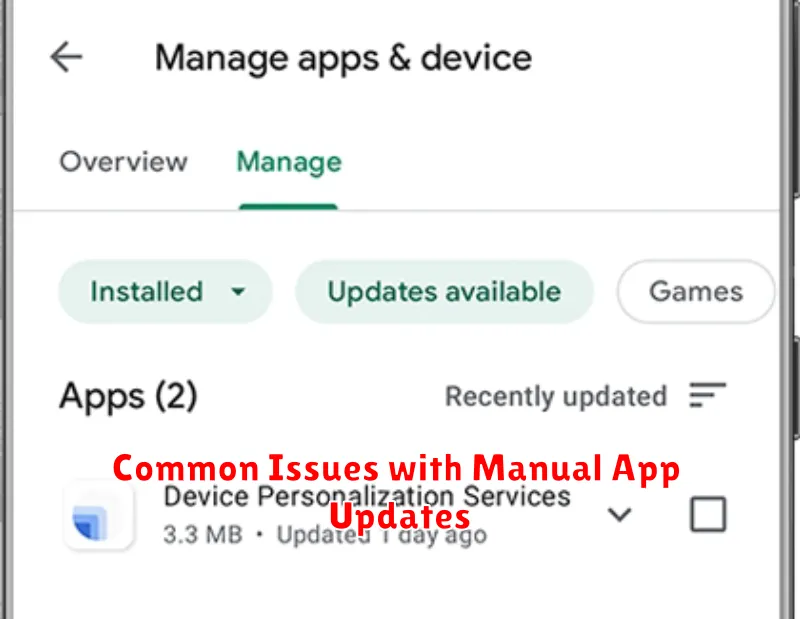
- Select “Manage apps & device.”
- Tap “Updates available.”
- You’ll see a list of apps with available updates. You can choose to update all apps at once by tapping “Update all” or select individual apps to update.
Checking for Individual App Updates: Some apps allow you to check for updates within their own settings. This often involves opening the app’s settings menu and looking for an “About,” “Version,” or “Check for Updates” option. This method varies between apps, so refer to the specific app’s documentation if needed.
Manually Updating Apps on iOS
Updating apps on iOS devices is generally automatic, but you can also update them manually through the App Store. This can be helpful if automatic updates are disabled or you’re experiencing issues with a specific app.
To manually update your iOS apps, follow these steps:
-
Open the App Store app on your iPhone or iPad.
-
Tap your profile icon in the upper-right corner.
-
Scroll down to see pending updates. Available updates will be listed with an “Update” button next to them.
-
Tap “Update” next to an individual app to update only that app, or tap “Update All” to update all apps with available updates.
You may be prompted to enter your Apple ID password to confirm the updates.
Troubleshooting Manual App Updates
Sometimes, manual app updates don’t go as planned. Here are some common issues and how to address them:
“Insufficient Storage” Errors
If you encounter an “insufficient storage” error, you’ll need to free up space on your device. Delete unused apps, photos, or videos to make room for the update.
“App Not Installed” Errors
This error can occur if the app update file is corrupted. Try re-downloading the update. Ensure you’re downloading from a trusted source.
App Crashes After Update
If the app crashes after a manual update, try clearing the app’s cache and data. If the problem persists, reinstalling the app might resolve the issue.
Update File Compatibility Issues
Ensure the downloaded update file is compatible with your device’s operating system version. Attempting to install an incompatible file can lead to errors.
Understanding App Update Settings
Managing app updates effectively requires understanding the available settings on your device. These settings allow you to control how and when your apps are updated.
Automatic Updates
Most devices default to automatic updates. This means the operating system will download and install updates in the background, usually when connected to Wi-Fi. This ensures your apps are always up-to-date with the latest features and security patches.
Manual Updates
Choosing to update manually gives you more control over the process. You can decide which apps to update and when. This can be useful for managing data usage or if you prefer to test new versions before updating all your apps.
Update Notifications
Notification settings can be adjusted to alert you when updates are available or have been installed. This helps you stay informed about app changes and ensures you don’t miss important updates.
Data Usage Settings
To manage data usage, you can usually specify whether updates should download only over Wi-Fi or if cellular data can also be used. This is particularly important for larger apps or if you have limited data.
Best Practices for Manual App Updates
While manual updates can be necessary, following best practices ensures a smoother process and minimizes potential issues. Back up your device before initiating any manual updates. This precaution safeguards your data in case of unexpected errors during the update process.
Verify the source of the update file. Download updates only from official app stores or reputable developer websites. Avoid third-party sources, as these can contain malware or corrupted files. Double-check the file integrity after downloading. Compare the file size or checksum with information provided by the official source to ensure the download wasn’t corrupted.
Ensure sufficient battery life before starting the update. A low battery can interrupt the process and potentially corrupt the app or even the operating system. Ideally, your device should be fully charged or connected to a power source during the update.
After installation, thoroughly test the app to confirm it functions correctly. Pay attention to key features and functionalities to ensure they are working as expected.
Common Issues with Manual App Updates
While manual updates offer more control, they can also present challenges. Compatibility issues are a common occurrence. Downloading an update designed for a different operating system version can lead to app malfunctions or even system instability.
Corrupted downloads are another potential problem. An incomplete or interrupted download can render the update unusable and may require re-downloading the entire package. This can be particularly frustrating with larger applications.
Overwriting data is a less frequent but serious concern. In some cases, a manual update may overwrite existing app data, leading to loss of progress or personalized settings. Always back up your data before proceeding with manual updates to mitigate this risk.
Finally, security risks exist if you download updates from unofficial or untrusted sources. Always ensure you are obtaining updates from the official app developer or a reputable app store.
