
Are you tired of unwanted app updates constantly consuming your mobile data and disrupting your workflow on your Android device? Do auto-updates leave you with apps you’re not ready to use, or worse, introduce unexpected bugs and compatibility issues? Reclaim control over your device and your data usage. This comprehensive guide will provide a step-by-step walkthrough on how to disable auto-updates for individual apps or all applications on your Android device, putting you back in charge of your mobile experience.
Learn how to manage app updates effectively and efficiently, preventing those frustrating moments when your favorite app suddenly changes without your consent. Whether you’re looking to conserve mobile data, maintain app stability, or simply prefer to update your apps manually, this guide offers the solutions you need. Take the first step towards a more controlled and personalized Android experience by mastering the art of disabling automatic updates.
Understanding the Pros and Cons of Automatic App Updates
Automatic app updates offer a convenient way to keep your apps current without manual intervention. This convenience is a major advantage, ensuring you always have the latest features, bug fixes, and security patches. Updated apps contribute to a smoother, more secure user experience.
However, automatic updates also have potential drawbacks. They can consume mobile data if not configured for Wi-Fi only, leading to unexpected charges. Updates can sometimes introduce new bugs or compatibility issues with your device or other apps. Furthermore, some users prefer to control which updates are installed and when, allowing them to research changes and avoid unwanted features or interface redesigns.
Accessing Your App Update Settings
Locating your app update settings may vary slightly depending on your Android device’s manufacturer and Android version. However, the general process remains consistent. Follow these steps to access the menu where you control your app update behavior:
General Steps
-
Open the Google Play Store app on your device.
-
Tap your profile icon, usually located in the top right corner of the screen.
-
Select “Settings” from the menu that appears.
-
Tap “Network Preferences.”
-
Choose “Auto-update apps.” This will open the settings menu where you can manage how your apps update.
From here, you can proceed to disable automatic updates entirely or customize update behavior for individual apps.
Disabling Automatic Updates for All Apps
To prevent all apps from updating automatically on your Android device, follow these steps. Keep in mind that these steps might vary slightly depending on your device’s manufacturer and Android version. It’s always best to consult your device’s specific user manual if you encounter any differences.
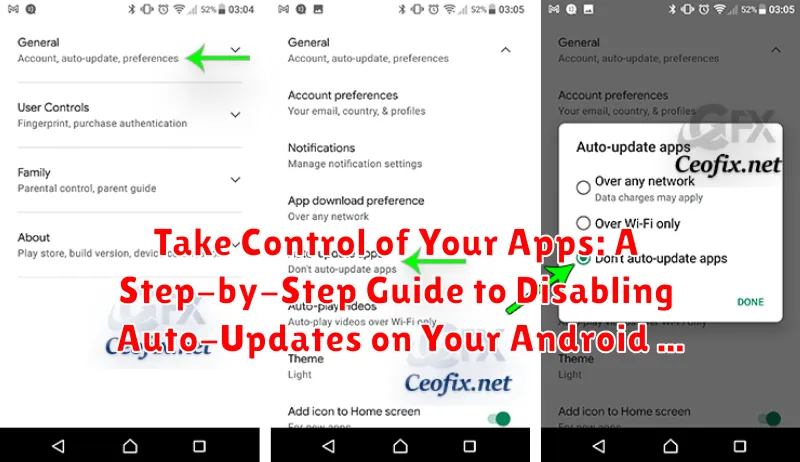
Start by opening the Google Play Store app. Locate and tap on your profile icon, typically found in the top right corner of the screen.
From the menu that appears, select Settings. Then, navigate to the Network Preferences section. Here, you’ll find the Auto-update apps option.
Tap on Auto-update apps. A dialog box will appear presenting you with three options: Over any network, Over Wi-Fi only, and Don’t auto-update apps.
Select Don’t auto-update apps. This will completely disable automatic updates for all applications installed through the Google Play Store. You’ll now need to manually update each app individually.
Selectively Disabling Updates for Specific Apps
While disabling all automatic updates can provide control, you might prefer to allow some apps to update automatically while managing others manually. This selective approach offers a balance between convenience and control. Android allows you to customize update behavior on a per-app basis.
To disable automatic updates for specific apps, follow these steps:
- Open the Google Play Store app.
- Tap your profile icon in the top right corner.
- Select “Manage apps & device.”
- Choose the “Manage” tab.
- Select the specific app you want to control.
- Tap the three vertical dots in the upper right corner of the app’s page.
- Uncheck the “Enable auto update” option.
By following these steps, you can specify which apps update automatically and which require your explicit approval. This allows you to prioritize crucial apps while maintaining control over less critical ones.
Manually Updating Apps on Your Schedule
Taking charge of your app updates means you decide when apps are updated, giving you more control over data usage and potential disruptions. Here’s how to manually update your Android apps:
First, open the Google Play Store app. Tap on your profile icon typically located in the top right corner.
Next, select “Manage apps & device”. Under the “Updates available” section, you’ll see a list of apps with pending updates. You can choose to update all apps at once by tapping “Update all”.
Alternatively, for selective updates, find the specific app you wish to update in the list. Tap the “Update” button next to the app. This grants you granular control over which apps are updated and when, allowing you to prioritize essential apps or postpone less critical updates.
By adopting this manual update approach, you ensure that updates occur at your convenience, minimizing disruptions and allowing you to monitor app changes effectively.
Configuring Update Preferences for Wi-Fi Only
Restricting app updates to Wi-Fi only helps conserve your mobile data. This setting ensures that your device will not automatically download updates when using cellular data, preventing unexpected data charges. Follow these steps to configure your update preferences:
-
Open the Google Play Store app.
-
Tap your profile icon in the top right corner.
-
Select Settings.
-
Tap Network preferences.
-
Choose Auto-update apps.
-
Select Over Wi-Fi only. This will prevent apps from updating automatically when using mobile data.
By configuring this setting, you maintain control over when and how your apps update, minimizing data usage and potential overage charges.
Troubleshooting App Update Issues
Occasionally, even with auto-updates disabled, you might encounter issues. Here are some common problems and their solutions:
Insufficient Storage
Problem: Updates fail due to low storage space on your device.
Solution: Free up space by deleting unused apps, photos, or videos. You can also move files to an SD card if your device supports it.
Corrupted Cache
Problem: A corrupted Google Play Store cache can interfere with updates.
Solution: Clear the Google Play Store cache by going to Settings > Apps > Google Play Store > Storage & cache > Clear Cache. Restart your device after clearing the cache.
Incompatible App Versions
Problem: The app update may not be compatible with your current Android version.
Solution: Check if your device’s operating system meets the app’s requirements. Consider updating your Android version if possible, or checking for an older, compatible version of the app.
Network Connectivity Issues
Problem: Even with auto-updates off, you may still need a connection to initiate a manual update. A poor connection can cause delays or failures.
Solution: Check your Wi-Fi or data connection strength. Try troubleshooting your network connection or connecting to a different network.
Re-Enabling Automatic Updates if Needed
Should you decide to revert to automatic updates, the process is straightforward. Google Play Store manages these settings, allowing you to easily re-enable the feature.
Open the Google Play Store app on your device. Tap on your profile icon usually located in the top right corner. From the menu, select “Settings.” Then, navigate to “Network Preferences” and tap on “Auto-update apps.”
You will be presented with three options: “Over any network,” “Over Wi-Fi only,” and “Don’t auto-update apps.” Select either “Over any network” to enable updates on both Wi-Fi and mobile data, or “Over Wi-Fi only” to restrict updates to Wi-Fi connections. Your changes will be saved automatically.
By following these steps, you can seamlessly switch between manual and automatic app updates based on your preferences.
