
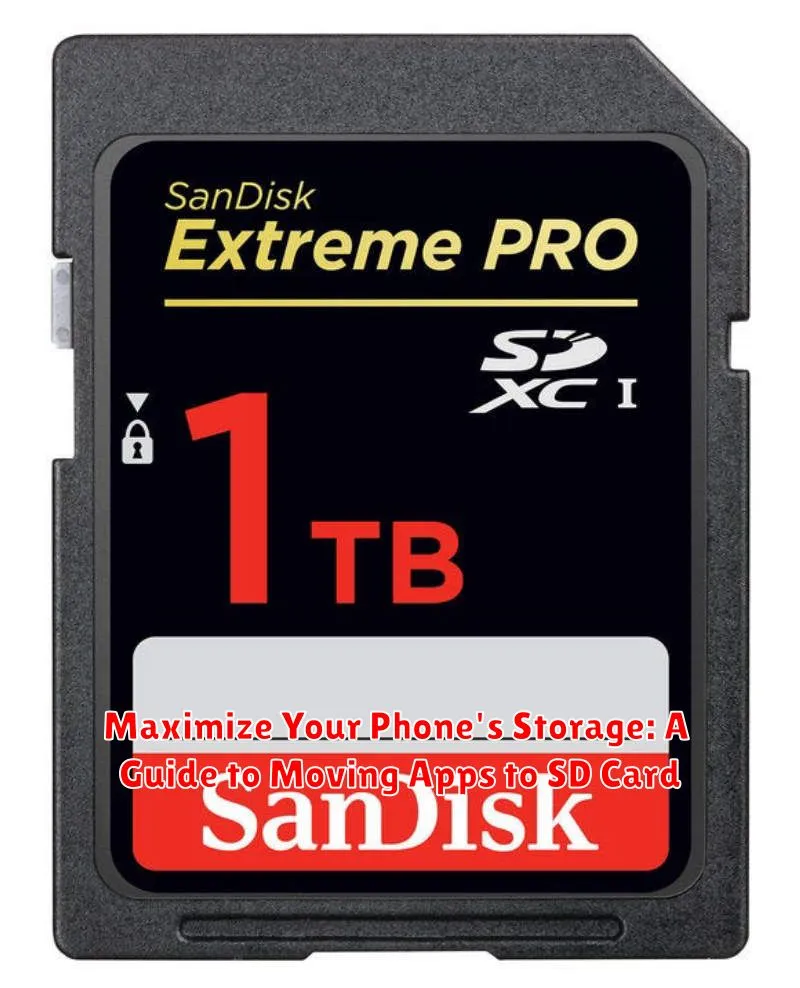
Is your phone constantly reminding you about low storage? Are you tired of deleting precious photos and videos or uninstalling favorite apps just to make space? Many Android phones offer expandable storage via SD cards, a simple yet effective solution to reclaim valuable storage space. This comprehensive guide provides step-by-step instructions on how to move apps to SD card, maximizing your phone’s storage capacity and allowing you to enjoy more apps, photos, and videos without the constant worry of running out of space. Learn how to identify compatible apps, understand the transfer process, and troubleshoot potential issues.
Moving apps to your SD card is a straightforward process that can significantly improve your phone’s performance and free up internal storage. This guide will cover the necessary steps involved in moving apps to an SD card on various Android devices. We will address common questions regarding SD card compatibility and explain how to choose the right SD card for your needs. Furthermore, this guide provides helpful tips for managing app storage effectively and maximizing the benefits of using an SD card for app storage. By following the steps outlined in this guide, you can effectively free up space on your internal storage and enjoy a smoother, more efficient mobile experience.
Checking SD Card Compatibility
Before attempting to move apps to your SD card, it’s crucial to verify if your phone and the SD card itself support this functionality. Not all devices offer this feature, and even if they do, the type of SD card you have might influence compatibility.
First, check your phone’s settings. Typically, under storage or memory settings, you should find information about your SD card and available options. Look for any mentions of “portable storage” or options to format the SD card as internal storage. If you can format it as internal storage, your phone likely supports moving apps.
Next, consider the class of your SD card. Higher class SD cards (like Class 10 or UHS) offer faster read and write speeds, which are essential for running apps smoothly. Using a slower card can lead to performance issues. Check your SD card’s packaging or labeling for its class rating.
Preparing Your SD Card for App Transfer
Before transferring apps, ensure your SD card is properly formatted and ready. Using an improperly formatted card can lead to data loss or corruption. Most phones format the SD card during the initial setup process. However, if you’re reusing an existing card, formatting it is crucial.
Formatting erases all data on the SD card, so back up any important files beforehand. You can typically format the SD card directly through your phone’s settings. Look for storage or SD card options within the settings menu. The formatting process usually involves selecting the SD card and choosing the “Format” or “Erase” option.
Consider the file system when formatting. While some phones may offer different options, exFAT is generally recommended for its broader compatibility and support for larger files. After formatting, your SD card will be ready for app transfer.
Step-by-Step Instructions for Moving Apps to SD Card

The process for moving apps to your SD card can vary slightly depending on your phone’s manufacturer and Android version. However, the general steps are as follows:
Accessing App Info
Step 1: Open your phone’s Settings app.
Step 2: Navigate to Apps or Application Manager (the name may differ slightly).
Step 3: Select the app you wish to move to the SD card.
Moving the App
Step 4: Look for an option labeled “Storage” or “Storage Used“. Tap on it.
Step 5: If the app is compatible with being moved, you should see a button that says “Change” next to the current storage location (usually “Internal Storage”). Tap this button.
Step 6: Choose your SD card from the available storage options.
Step 7: The system will now begin transferring the app. This may take a few moments depending on the size of the app.
Understanding App Limitations and Compatibility
While moving apps to your SD card can free up valuable internal storage, it’s essential to understand that not all apps are designed to function from external storage. Certain app functionalities might be affected, and not all apps can be transferred.
App Developer Restrictions: Some app developers specifically restrict their apps from being moved to external storage due to performance or security concerns. These restrictions are built into the app and cannot be bypassed by the user.
Integrated Apps: Pre-installed system apps and core functionalities are typically integrated with the operating system and often cannot be transferred to the SD card. These apps are optimized for internal storage performance.
Performance Impact: Even if an app can be moved, running it from an SD card might result in slightly slower performance compared to running it from internal storage. This is because SD card read/write speeds are generally slower than internal storage speeds. The performance difference might be noticeable with graphically intensive apps or games.
SD Card Removal Issues: If the SD card is removed, the apps stored on it will become inaccessible. Upon reinserting the card, the apps will be available again. However, frequently removing and reinserting the SD card can potentially lead to data corruption.
Managing Apps on Your SD Card
Once you’ve moved apps to your SD card, effectively managing them is crucial for maintaining optimal performance and storage organization. Regularly check your SD card’s available space. If it’s nearing full capacity, consider moving less frequently used apps back to internal storage or uninstalling them altogether.
App updates often require more space. If an app on your SD card needs an update and there’s insufficient space, you may need to temporarily move it back to internal storage or clear space on the SD card. After the update, you can move it back to the SD card.
If you decide to replace your SD card, remember that apps moved to the old card won’t be accessible on the new one. You’ll need to reinstall and move those apps again on the new SD card. Before removing an SD card, safely eject it through your phone’s settings. This prevents data corruption and ensures your apps remain functional when you reinsert the card.
Troubleshooting Common SD Card Issues
Sometimes, you might encounter issues when trying to move apps to your SD card. Here are a few common problems and their solutions:
App Not Movable
Not all apps are designed to be moved to external storage. If the “Move to SD Card” option is grayed out, the app developer likely restricted this functionality.
Insufficient Space on SD Card
Ensure your SD card has enough free space. Moving large apps requires adequate available storage. Consider deleting unnecessary files on the SD card or upgrading to a larger capacity card.
Corrupted SD Card
A corrupted SD card can prevent apps from moving or functioning correctly. Try reformatting the SD card (remember to back up your data first!). If reformatting doesn’t work, you might need a new SD card.
Phone Compatibility
Older Android versions had better support for moving apps to SD cards. Newer versions may have limitations or handle the process differently. Check your phone’s documentation for specifics regarding SD card usage.
Best Practices for Moving Apps

Check App Compatibility: Not all apps support being moved to an SD card. Verify compatibility within your phone’s settings or the app’s information page. Attempting to move incompatible apps can lead to functionality issues.
Use a High-Quality SD Card: A fast SD card (Class 10 or UHS-I) is crucial for smooth app performance. Lower-class cards can significantly slow down app loading and operation. Consider the storage capacity you need based on your app usage.
Move Larger Apps: Prioritize moving larger apps to free up significant space on your internal storage. Smaller apps often have minimal impact on internal storage and might not benefit from being moved.
Test App Functionality After Moving: After transferring apps, open and use them to ensure they are functioning correctly. If you experience issues, you may need to move the app back to internal storage.
