
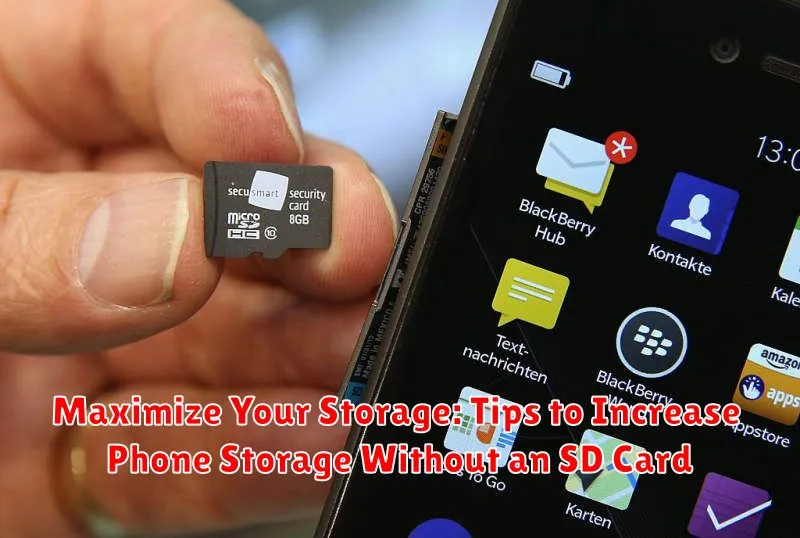
Is your phone constantly reminding you about low storage? Do you find yourself deleting precious photos and videos just to make space for new ones? Running out of storage space on your phone can be incredibly frustrating, especially if your device doesn’t offer expandable storage via an SD card. This article offers practical tips to help you maximize your phone’s storage capacity and increase available space without the need for external hardware. Learn how to reclaim valuable storage and keep your device running smoothly, all without sacrificing your important files.
Reclaiming storage space on your device doesn’t have to be a daunting task. By implementing a few strategic steps, you can effectively increase your phone storage and avoid the dreaded “storage full” notification. We will explore several techniques to help you identify storage-hogging culprits and effectively manage your files. From clearing cached data to leveraging cloud storage solutions and identifying duplicate files, discover how to maximize your phone’s storage potential and keep your device running efficiently.
Understanding Phone Storage
Before diving into storage optimization, it’s crucial to understand how your phone storage works. Your phone’s internal storage is like a hard drive, holding all your data, including the operating system (OS), pre-installed apps, and user-installed apps, photos, videos, music, and other files. This storage is divided into different categories.
System storage is occupied by the OS and essential system files, and this space isn’t readily available for user data. App storage includes space used by the apps themselves and their associated data. Media storage holds files like photos, videos, and music. Finally, “Other” storage often contains cached data, temporary files, and other miscellaneous items.
Knowing how your storage is allocated helps you pinpoint which areas consume the most space and prioritize your cleaning efforts. Checking your phone’s storage breakdown in the settings menu will provide specific details on your device’s storage usage.
Clearing App Cache and Data

Over time, apps accumulate temporary files known as cache, which can consume significant storage space. Clearing the cache can free up space without affecting app functionality. Be aware that clearing cache might require you to re-enter login details or personalize settings within apps.
Additionally, app data encompasses saved settings, game progress, and other app-specific information. Clearing app data will reset the app to its default state, effectively deleting all personalized information and progress. This action should be considered carefully as it cannot be easily reversed.
Most phones allow you to clear cache and data individually for each app. Typically, this is found within the phone’s settings, under an “Apps” or “Applications” section. From there, select the specific app and choose to clear cache or data.
Deleting Unused Apps
One of the simplest ways to reclaim valuable storage space on your phone is by removing applications you no longer use. Many apps, especially games, can consume a significant amount of storage. Over time, these unused apps accumulate and contribute to storage issues.
Identify apps you haven’t used recently. Check the last used date in your phone’s settings. Be honest with yourself about which apps are truly essential. Often, we keep apps “just in case,” but rarely, if ever, use them. These are prime candidates for deletion.
The process for deleting apps varies slightly depending on your operating system (e.g., Android or iOS), but generally involves holding down the app icon and selecting the uninstall option. Don’t forget to check for pre-installed apps that may not be essential to your phone’s core functions. Some manufacturers allow the removal of these bloatware apps, freeing up even more space.
Managing Photos and Videos
Photos and videos are often the biggest culprits of storage space consumption. Efficiently managing these files is crucial for maximizing your phone’s storage capacity.
Regularly review your photo and video library. Delete blurry shots, duplicates, and content you no longer need. This simple step can free up a significant amount of space.
Consider compressing your photos and videos. Many phones offer built-in compression options, reducing file sizes without drastically impacting quality.
Shorten video lengths where possible. Trim unnecessary footage from your recordings to conserve storage.
Utilizing Cloud Storage: Google Photos, iCloud, and More

Cloud storage services offer a convenient way to free up valuable space on your phone without permanently deleting files. By uploading your photos, videos, and other files to the cloud, you can access them from any device with an internet connection.
Google Photos is a popular option, offering free unlimited storage for high-quality photos and videos. It also provides intelligent features like automatic organization and facial recognition. For Apple users, iCloud seamlessly integrates with iOS and macOS, allowing for effortless backups and syncing of data across devices. iCloud offers a limited amount of free storage, with additional storage tiers available for purchase.
Beyond these two popular services, numerous other providers offer varying degrees of storage capacity and pricing plans. Exploring options like Dropbox, OneDrive, and Box can provide additional flexibility based on individual needs. Be sure to research and compare various services to find the most suitable fit for your storage requirements and budget.
A key aspect of using cloud storage effectively involves understanding its sync settings. Setting up automatic backups will ensure your phone continuously uploads new content to the cloud, consistently freeing up space. Review the specific cloud service’s options to customize the types of files you wish to back up and the frequency of these backups.
Moving Files to Your Computer
Transferring files to your computer is a reliable way to free up significant space on your phone. This is especially useful for large files like videos and high-resolution photos.
There are several methods to accomplish this. You can connect your phone directly to your computer using a USB cable. Most operating systems recognize phones as external storage devices, allowing you to drag and drop files.
Alternatively, cloud storage services offer seamless file transfer. Upload your files to a service of your choice, and then download them to your computer. After ensuring the files are safely backed up, you can delete them from your phone.
Remember to always back up important files before deleting them from your phone.
Optimizing System Settings
Several system settings can be adjusted to reclaim valuable storage space on your phone. Reviewing and clearing cached data is a good starting point. Many apps store temporary files, which can accumulate over time. Access your phone’s storage settings to clear cached data for individual apps or all apps at once.
Disabling automatic downloads for media in messaging apps can prevent large files from unknowingly consuming storage. Configure your messaging apps to only download media when manually selected.
Consider adjusting settings for system services such as automatic backups. While backups are essential, optimizing their frequency and the type of data backed up can help manage storage. For example, choose to back up only photos and videos, excluding less critical data.
