
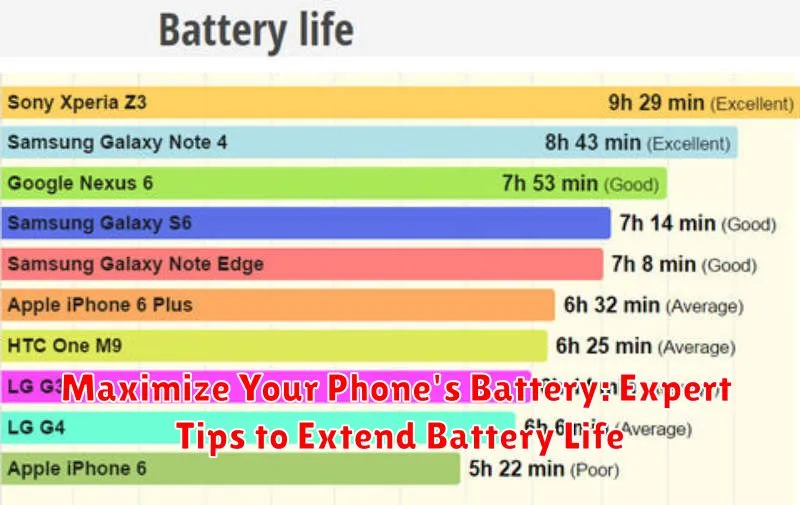
Is your phone constantly teetering on the brink of a dead battery? Do you find yourself desperately searching for a charger throughout the day? In today’s hyper-connected world, a dying phone battery can feel like losing a lifeline. This article provides expert tips and tricks to help you maximize your phone’s battery life and keep your device powered up throughout the day. Learn how to extend battery life, understand what drains your battery the fastest, and discover power-saving strategies you can implement right now. Say goodbye to low battery anxiety and hello to extended usage with these practical and effective methods.
Whether you have an Android or an iPhone, these battery-saving tips will help you get the most out of every charge. We’ll cover everything from adjusting your screen brightness and managing notifications to optimizing background app usage and leveraging power-saving modes. By implementing these simple yet effective strategies, you can significantly extend your phone’s battery life and enjoy uninterrupted usage. Read on to unlock the secrets to a longer-lasting battery and keep your phone powered up when you need it most.
Understanding Battery Drain Factors
Several factors contribute to battery drain on your smartphone. Identifying these factors is the first step toward maximizing your battery life. Screen brightness is a major culprit. Higher brightness levels consume significantly more power.
App usage plays a critical role. Power-hungry apps, especially games and streaming services, drain the battery quickly. Even when closed, some apps continue to run in the background, consuming power. Background processes, such as syncing and location services, also contribute to battery drain.
Network connectivity impacts battery life. Constantly searching for a signal or maintaining a connection in areas with weak reception drains the battery faster. Using mobile data generally consumes more power than Wi-Fi.
Hardware components like the processor and GPU demand power depending on their usage. Demanding tasks such as video processing and gaming consume more battery. Operating system updates and software bugs can also contribute to increased battery drain.
Optimizing Display Settings
Your phone’s display is a major power consumer. By adjusting a few key settings, you can significantly extend battery life. One of the most effective changes is to reduce screen brightness. Lowering the brightness even slightly can make a noticeable difference.
Enable Auto-Brightness: This feature automatically adjusts your screen’s brightness based on the ambient light, optimizing for visibility and power consumption. When in brightly lit environments, the screen brightens for clear viewing, and in darker environments, it dims to conserve battery.
Reduce Screen Timeout Duration: The screen timeout setting determines how long your phone’s display stays on after you stop interacting with it. Shortening this duration prevents the screen from staying lit unnecessarily. Consider setting it to 30 seconds or less.
Choose a Dark Theme (if available): On devices with OLED or AMOLED displays, using a dark theme can save power. Unlike LCDs that illuminate the entire screen, OLED and AMOLED displays light up individual pixels. With a dark theme, fewer pixels need to be illuminated, resulting in lower power consumption.
Managing App Usage and Background Processes
Unnecessary background activity is a major drain on your phone’s battery. Regularly review and manage the apps running in the background to optimize battery life.
Identify resource-intensive apps. Some apps consume more power than others, even when not actively used. Check your phone’s battery usage statistics to pinpoint these power-hungry applications. Consider limiting their use or uninstalling them if they are not essential.
Force-close unused apps. While the operating system manages background processes, proactively closing apps you aren’t using can further conserve battery. Be mindful, however, that constantly closing and reopening apps can sometimes use more power than leaving them running in the background.
Restrict background data usage. Many apps refresh data in the background, consuming battery in the process. Limit background data for non-essential apps in your phone’s settings. This can significantly extend battery life, especially for apps that frequently sync data.
Utilizing Power Saving Modes
Most modern smartphones offer built-in power saving modes designed to extend battery life. These modes work by limiting or disabling certain features and functions.
Low Power Mode/Battery Saver: This mode is the most common and typically restricts background activity, reduces screen brightness, and limits performance. It’s a good option for everyday use when you want to conserve battery without significantly impacting functionality.
Ultra Power Saving Mode/Maximum Power Saving Mode: This more aggressive mode drastically limits functionality, often restricting usage to essential apps like phone, messaging, and a few select others. The display may switch to grayscale, and background data usage is usually disabled. This mode is ideal for emergencies or when you absolutely need to stretch your battery life.
Customize Power Saving Settings: Some devices allow you to customize power saving modes. This allows you to choose which features are restricted and to what extent. You can often tailor the settings to your specific needs, finding a balance between battery life and functionality.
Activate Automatically: Configure your phone to activate Power Saving Mode automatically when the battery reaches a certain percentage, like 20% or 15%. This proactive approach ensures you don’t have to manually enable the mode when your battery is low.
Adjusting Network Connectivity
Network connectivity plays a significant role in battery consumption. Constantly searching for or maintaining a strong signal can drain your battery quickly. By strategically managing your network settings, you can significantly extend your phone’s battery life.
When you have a stable Wi-Fi connection available, use it. Wi-Fi typically consumes less power than mobile data. Disable mobile data when you’re on a reliable Wi-Fi network to prevent your phone from unnecessarily using both connections.
In areas with weak or no signal, consider enabling Airplane Mode. This completely disables all wireless communication, preventing your phone from constantly searching for a signal. If you need to make a call or access data, temporarily disable Airplane Mode.
Limit your usage of data-intensive activities such as streaming high-definition videos or downloading large files when relying on mobile data. These activities consume significant power. Consider downloading content while connected to Wi-Fi for offline use later.
Controlling Location Services
Location services, while convenient, are a major drain on your phone’s battery. Constantly pinpointing your location demands significant power. Optimizing these settings can drastically improve your battery life.
Consider enabling location services only when necessary. Many apps request access to your location, even when it’s not essential for their function. Review your app permissions and restrict location access to “While Using” or “Never” for apps that don’t require constant location tracking.
You can further refine these settings by disabling location services for specific system services like “Significant Locations” or “Location-Based Suggestions,” which contribute to background battery drain.
Proper Charging Practices
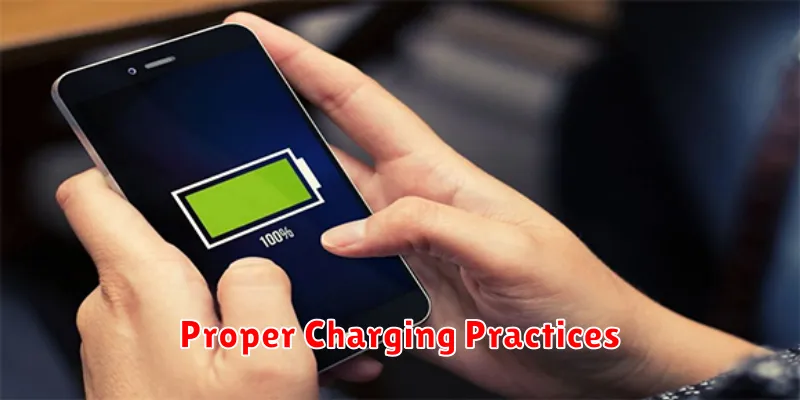
Avoid fully charging or fully depleting your battery. Modern lithium-ion batteries perform best when maintained between 20% and 80% charge. Consistently charging to 100% or letting the battery drain to 0% can degrade the battery’s capacity over time.
Partial charging is perfectly acceptable and even encouraged. Topping off your battery whenever convenient won’t harm it. It’s a myth that you must wait until the battery is low before plugging it in.
Unplug your phone once it reaches a full charge. While trickle charging mechanisms prevent overcharging, leaving your phone plugged in for extended periods when already full can contribute to heat buildup, which can slightly impact long-term battery health.
Use the charger that came with your phone or a reputable alternative. The charger provided by the manufacturer is specifically designed for your device’s battery. If you need a replacement, opt for a charger with similar specifications and certifications.
Battery Health Monitoring and Maintenance
Regularly monitoring your phone’s battery health is crucial for maximizing its lifespan. Most modern smartphones offer built-in tools to check battery health. Access these tools through your phone’s settings, typically under “Battery” or a similar category.
These tools often provide a percentage representing the battery’s current capacity relative to its original capacity. A lower percentage indicates more wear and tear. Some devices also provide insights into battery usage patterns, which can help you identify power-hungry apps or processes.
Maintaining battery health involves avoiding extreme temperatures. High temperatures can degrade battery performance over time. Avoid leaving your phone in direct sunlight or hot cars. Likewise, extremely cold temperatures can temporarily affect battery life, but these effects are typically reversible.
Consider using optimized charging features if your device offers them. These features learn your charging habits and aim to minimize the time the battery spends at 100% charge, which can contribute to long-term wear.
Choosing the Right Charger and Cable
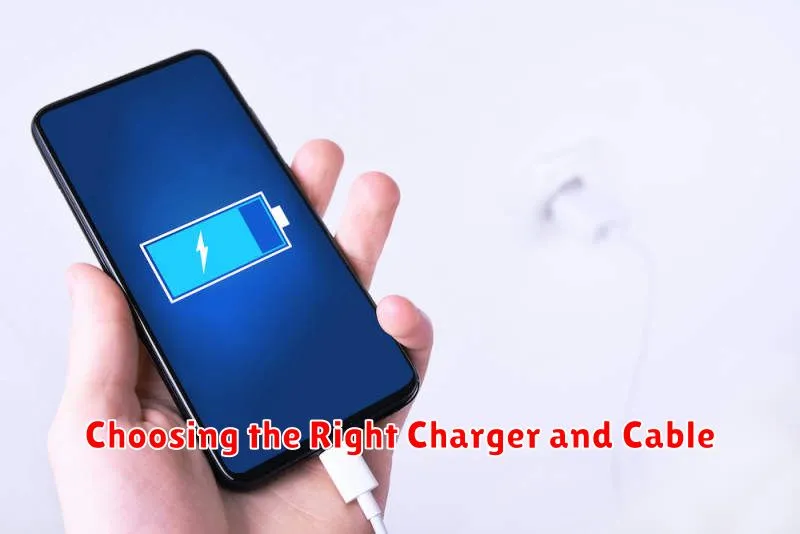
Using the correct charger and cable plays a crucial role in maintaining your phone’s battery health. Counterfeit or improperly manufactured chargers and cables can deliver inconsistent power, potentially damaging the battery and shortening its lifespan. Always opt for chargers and cables that are certified by your phone’s manufacturer or reputable third-party brands that adhere to industry standards.
Check the Charger Output: Ensure the charger’s output voltage and amperage (current) match your phone’s specifications. Using a charger with a significantly higher output than recommended could lead to overheating. Conversely, using an underpowered charger will result in extremely slow charging times.
Cable Quality Matters: A high-quality cable with proper shielding minimizes power loss and ensures efficient charging. Avoid using frayed or damaged cables as they can present safety hazards and negatively impact charging performance.
