
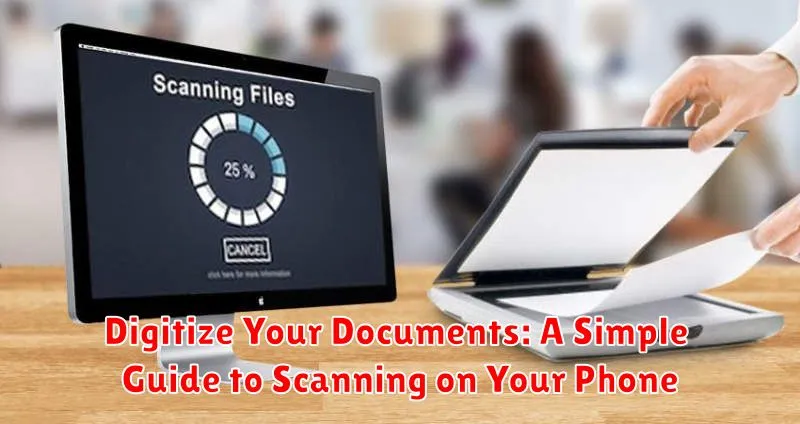
In today’s fast-paced digital world, managing physical documents can be cumbersome and inefficient. Digitizing your documents offers a practical solution, transforming paper files into easily accessible and searchable digital copies. This simple guide provides a comprehensive overview of how to effectively scan documents using your phone, offering a convenient and cost-effective way to declutter, organize, and safeguard important information. Learn how to leverage the power of your smartphone’s camera and readily available scanning apps to create high-quality digital versions of your documents, from receipts and contracts to photos and handwritten notes. This process not only simplifies storage and retrieval but also helps protect against loss or damage.
Whether you’re a student, a professional, or simply looking to streamline your personal paperwork, scanning documents on your phone is a valuable skill to acquire. This guide will walk you through the process step-by-step, covering everything from selecting the right scanning app to optimizing image quality and organizing your digital files. Discover the benefits of document digitization, including enhanced security, improved accessibility, and reduced environmental impact. By embracing the power of mobile scanning, you can free yourself from the limitations of physical paper and unlock a more efficient and organized approach to document management.
Getting Started with Document Scanning on Your Phone
Most modern smartphones come equipped with built-in scanning capabilities, often integrated directly into their camera apps or other pre-installed utilities. Locating this feature is the first step. Generally, you can find it within the camera app’s settings or modes, sometimes labeled as “Document,” “Scan,” or something similar. If your phone doesn’t offer a native scanning option, numerous third-party scanning apps are available for download.
Once you’ve located the scanning feature, prepare your document. A flat, well-lit surface is crucial for capturing a clean scan. Avoid shadows and glare, which can obscure text and details. Place the document flat on the surface and ensure your phone’s camera is positioned directly above it for optimal capture. Hold your phone steady to minimize blur.
Initiate the scan. Most scanning apps automatically detect the document’s edges and capture the image, but you might need to manually adjust the framing if necessary. Pay attention to any on-screen prompts or guides to ensure the entire document is within the frame. After capturing the scan, review the image to verify its clarity and completeness. Most apps allow rescans if needed.
Built-in Scanning Apps vs. Third-Party Options
When it comes to scanning documents on your phone, you have two primary choices: utilizing built-in scanning functionalities or downloading a dedicated third-party scanning app. Both options offer advantages and disadvantages to consider.
Built-in scanning apps are often found within default Notes or camera apps. They are convenient for quick scans and require no additional downloads. However, their functionality might be limited, offering fewer editing and organizational features.
Third-party scanning apps, on the other hand, provide a wider range of features. These often include optical character recognition (OCR), cloud integration, batch scanning, and advanced editing tools. However, they require downloading and installation, and some premium features may come at a cost.
Ultimately, the best choice depends on your individual needs. For occasional simple scans, built-in apps suffice. If you frequently scan documents and require advanced features like OCR or cloud storage, a third-party app is likely the better option.
Tips for Achieving High-Quality Scans
Preparation is key for a good scan. Ensure your document is flat and clean. Smooth out any folds or creases. Wipe away dust or debris that could mar the image. A clean background is crucial. Use a contrasting background – a dark document on a light surface, or vice versa.
Proper lighting dramatically affects scan quality. Avoid harsh shadows by using diffuse, even lighting. Natural light is often best. Avoid direct sunlight, which can cause overexposure and glare. If using artificial light, position multiple light sources to minimize shadows.
Hold your phone steady directly above the document to minimize distortion. Some apps offer features like auto-capture that trigger the scan when the phone is stable and the document is in focus. Ensure your phone is parallel to the document to prevent skewed images.
Adjust the cropping and perspective after capturing the scan. Most apps allow manual cropping and perspective correction. This ensures that the scanned image contains only the necessary content and appears rectangular, like the original document.
Organizing and Managing Your Scanned Documents
Once you’ve digitized your documents, implementing a robust organizational system is crucial for easy retrieval and efficient management. A well-structured system prevents digital clutter and ensures you can quickly locate the files you need.
Consider using a consistent naming convention for your files. This could be based on date, document type, or any other relevant identifier. For example, you might use “YYYYMMDD_Invoice_ClientName” or “DocumentType_YYYYMMDD_Description.”
Cloud storage services are invaluable for both backing up and accessing your documents from anywhere. Choose a reputable service that meets your storage needs and security requirements. Synchronizing your files across devices ensures you always have the most up-to-date versions.
Create digital folders to categorize your documents. You can organize them by type (receipts, contracts, medical records), date, or project. Develop a folder hierarchy that makes sense for your specific needs and stick to it consistently.
Regularly review and delete unnecessary documents. This will keep your digital filing system streamlined and prevent it from becoming overloaded with obsolete files.
Editing and Enhancing Scanned Documents
Once your documents are digitized, you can further improve their quality and readability with various editing tools. Many scanning apps offer basic editing features like cropping, rotating, and adjusting brightness and contrast.
Cropping allows you to remove unwanted borders or sections, focusing solely on the essential content. Rotation corrects any skewed scans, ensuring proper alignment. Brightness and contrast adjustments help optimize readability, especially for documents with faded text or uneven lighting.
For more advanced editing, consider dedicated image editing apps. These offer features like perspective correction, which can fix distortions from angled scans, making the document appear flat and properly aligned. You can also use these apps to remove blemishes, erase stray marks, or adjust color balance.
Some apps even offer Optical Character Recognition (OCR). OCR converts scanned images into editable text, allowing you to search, copy, and paste content from your digitized documents.
Sharing and Exporting Scanned Documents
Once you’ve digitized your documents, sharing and exporting them is usually straightforward. Most scanning apps offer various options for sharing directly to other applications. Common sharing methods include email, messaging apps, cloud storage services, and even printing directly from your phone.
Exporting options often include PDF and image formats like JPEG or PNG. The PDF format is generally preferred for documents as it preserves the original formatting and is widely compatible. Choosing the right format depends on how you intend to use the scanned document.
Before sharing or exporting, consider the file size. Large files can be difficult to send via email or messaging apps. If file size is an issue, some scanning apps offer options to compress the file, reducing its size while potentially sacrificing some image quality.
Troubleshooting Common Scanning Issues
Occasionally, you might encounter problems while scanning documents with your phone. This section addresses some common issues and their solutions.
Blurry Scans
Blurry scans often result from camera shake or an unsteady hand. Ensure your phone is stable, ideally using a tripod or by placing it on a flat surface. Good lighting is also crucial. Avoid shadows and ensure the document is evenly lit.
Cropping Issues
If the scan isn’t cropping correctly, try adjusting the scanning area manually. Most scanning apps allow you to drag the corners of the scanning frame to define the document’s boundaries. Make sure the entire document is within the frame before capturing the scan.
Skewed or Distorted Scans
Perspective distortion can occur if the phone isn’t directly above the document. Try to position your phone as parallel to the document as possible. Some apps offer perspective correction features that can automatically fix minor distortions after scanning.
Poor Image Quality
Low-resolution scans can make text difficult to read. Check your scanning app’s settings and ensure it’s set to a high resolution. Cleaning your phone’s camera lens can also improve image clarity.
Best Practices for Secure Document Scanning
Protecting your sensitive information when scanning documents on your phone is crucial. Follow these best practices for secure document digitization.
Use Strong Passwords and Authentication: Ensure your phone itself is protected with a strong password, PIN, or biometric lock. Many scanning apps also offer password protection features for individual documents or folders. Utilize these features for an added layer of security.
Beware of Public Wi-Fi: Avoid scanning and transferring sensitive documents while connected to public Wi-Fi networks. These networks are often unsecured and can leave your data vulnerable to interception.
Delete Originals Securely: After digitizing important documents and verifying their accuracy, shred or securely destroy the physical originals to prevent unauthorized access.
Choose Reputable Scanning Apps: Select scanning apps from trusted developers with a positive track record regarding privacy and security. Read user reviews and research the app’s data handling practices.
Regularly Update Your Software: Keeping your phone’s operating system and scanning apps updated ensures you have the latest security patches and bug fixes, reducing vulnerabilities.
