
Concerned about your Android privacy? You’re not alone. With the increasing amount of personal data stored on our devices, understanding and managing your privacy settings is more crucial than ever. This ultimate guide provides a comprehensive overview of the essential Android privacy settings, empowering you to take control of your digital footprint and safeguard your sensitive information. Learn how to navigate the complexities of Android’s privacy features and protect yourself from potential risks.
From controlling app permissions to managing location services and securing your sensitive data, this guide offers practical steps to boost your Android privacy. Whether you’re a tech-savvy user or just starting to explore privacy settings, this ultimate guide will equip you with the knowledge and tools to enhance your Android privacy and ensure a more secure mobile experience. Explore the essential privacy settings and discover how to configure your device to protect your personal information effectively.
Understanding Android Privacy Settings
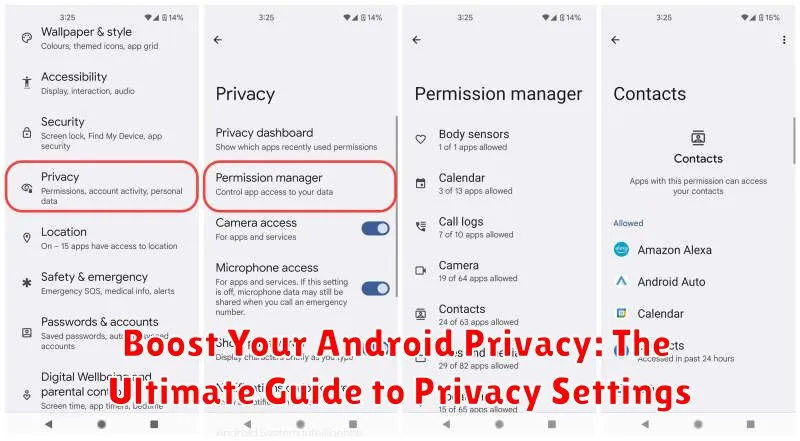
Android offers a robust set of privacy controls designed to protect your personal information. Understanding these settings is crucial to managing how your data is collected, used, and shared. These settings are typically located within the “Settings” app, often under a section named “Privacy” or “Security & privacy,” although the exact location may vary slightly depending on your Android version and device manufacturer.
These settings govern various aspects of your device’s privacy, such as location access, app permissions, and control over your camera and microphone. They also manage features like the Google Play Protect service which scans your apps for potentially harmful behavior. Familiarizing yourself with these settings allows you to personalize your privacy preferences and maintain greater control over your digital footprint.
Regularly reviewing and adjusting these settings is a key part of responsible device ownership and a proactive approach to protecting your privacy in the evolving digital landscape.
Essential Privacy Settings You Should Enable Now
Boosting your Android privacy starts with activating key settings. These core settings provide a robust foundation for protecting your data and controlling how your device interacts with apps and services.
Screen Lock
Enable a secure screen lock. Choose a strong PIN, password, or pattern. This prevents unauthorized access to your device and personal information. Consider enabling fingerprint or facial recognition for convenient yet secure unlocking.
Google Play Protect
Activate Google Play Protect. This security feature scans apps for malware and other threats, protecting your device from potentially harmful software.
Find My Device
Turn on Find My Device. This crucial setting allows you to locate, lock, or even erase your device remotely if it’s lost or stolen.
App Installation Restrictions
Restrict app installations from unknown sources. By enabling this setting, you prevent the installation of apps from outside the official Google Play Store, reducing the risk of malware.
Location Data Privacy: Tips and Tricks
Location data is a key piece of information for many apps, but sharing it constantly can compromise your privacy. Android offers granular control over how and when apps access your location.
Firstly, consider enabling Location Accuracy in your Location settings. This feature uses Wi-Fi and Bluetooth scanning to improve location accuracy while using less battery than GPS. However, remember that this still shares some location data.
Secondly, review the App-level permissions. Don’t grant location access to apps that don’t require it for core functionality. For apps that need location access, consider granting it only while using the app. This prevents background location tracking.
Finally, regularly check your Location History. Google keeps a record of where you go if you have this setting enabled. You can choose to disable it or periodically delete your location history for added privacy.
App Permissions: Taking Control of Your Data
App permissions dictate what resources on your device an app can access. Managing these permissions is crucial for maintaining your privacy. Android’s permission system allows you to grant or deny access to sensitive data like your camera, microphone, contacts, and location, preventing apps from accessing information they don’t genuinely need.
When installing a new app, carefully review the requested permissions. Ask yourself if the permissions make sense for the app’s functionality. For example, a calculator app shouldn’t need access to your microphone. If something seems amiss, consider finding an alternative app.
You can review and adjust permissions for installed apps in your device’s settings. Look for the “Apps” or “Applications” section, select the specific app, and navigate to “Permissions.” Here, you can toggle permissions on or off individually. Pay close attention to permissions related to your camera, microphone, location, and storage.
For enhanced control, consider utilizing the “Permission Manager” feature (name may vary depending on your Android version). This feature typically categorizes permissions by type, allowing you to see which apps have access to specific data like your contacts or calendar. It offers a centralized location to manage app permissions effectively.
Securing Your Sensitive Information with Biometrics
Biometrics offer a convenient and secure way to protect your sensitive data on your Android device. By using your unique physical characteristics, you can add an extra layer of defense against unauthorized access.
Android supports various biometric authentication methods, including fingerprint scanning, facial recognition, and iris scanning. The availability of these methods may vary depending on your device’s hardware.
Enabling biometric lock is usually straightforward. Navigate to your device’s security settings, locate the biometrics option, and follow the on-screen instructions to enroll your fingerprint, face, or iris. Once enabled, you can use your chosen biometric method to unlock your device and access sensitive apps and data.
While convenient, it’s important to be aware of the security implications of using biometrics. No biometric system is foolproof, and there’s always a potential risk of spoofing or unauthorized access. Consider the security level of your device and choose a biometric method that aligns with your needs.
Privacy-Focused Apps and Tools
Several apps and tools can bolster your Android device’s privacy. A VPN encrypts your internet traffic, shielding your online activity from prying eyes. Choose a reputable provider with a strong privacy policy.
Firewall apps offer granular control over which apps can access the internet. This can prevent unwanted data leakage in the background. Explore options that suit your technical proficiency.
Consider using a privacy-focused browser that blocks trackers and ads. This enhances both your privacy and browsing speed. Look for features like built-in VPNs and tracker blocking.
Password managers are essential for generating and securely storing complex passwords. This minimizes the risk of compromised accounts. Choose a manager with robust security features.
Advanced Privacy Settings for Tech-Savvy Users
For users seeking more granular control, Android offers advanced privacy settings. Developer options, accessible after enabling them in system settings, contain a wealth of privacy-related configurations.
USB debugging should be disabled when not in use to prevent unauthorized data access when connected to a computer. Similarly, revoke USB debugging authorizations periodically to maintain security.
Consider enabling Verify apps over USB to add an extra layer of protection against malicious apps being installed without your knowledge.
Restrict background activity for apps you deem less important to limit their resource consumption and potential data collection in the background.
Keeping Your Android Device Updated for Enhanced Privacy
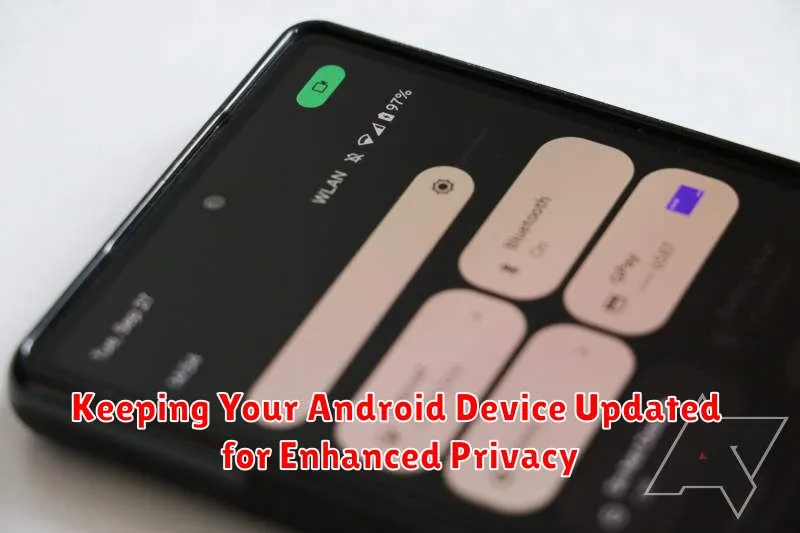
Maintaining an up-to-date Android device is crucial for privacy. Each update often includes vital security patches that address known vulnerabilities. Exploiting these vulnerabilities can compromise your personal data. Therefore, promptly installing updates helps shield your device from potential threats.
Updates also often incorporate improved privacy features and enhanced control over your data. These improvements might include refined permission controls, more transparent data usage indicators, and stronger encryption methods. By keeping your software current, you benefit from these advancements, bolstering your privacy defenses.
To check for updates, navigate to your device’s settings, typically found in the “System” or “About Phone” section. Look for the “Software Update” or “System Update” option. Regularly checking for updates ensures that you receive and install the latest security and privacy enhancements available for your device.
Regularly Review Your Privacy Settings

Maintaining your Android privacy isn’t a one-time task. It requires ongoing attention. Regularly reviewing your privacy settings is crucial to ensuring your device continues to reflect your comfort level with data sharing and access.
Consider setting a calendar reminder to review your settings on a consistent basis. A good practice is to check your privacy settings at least once a month. This allows you to catch any new settings introduced by app updates or operating system upgrades.
During your review, pay close attention to any permission changes requested by apps. Ask yourself if the requested permissions align with the app’s functionality. If not, consider revoking or denying the request. Additionally, review the privacy dashboards provided by both Android and individual apps to gain a comprehensive understanding of your data footprint.
Pro Tip: After major Android updates, take extra time to thoroughly review your privacy settings, as significant changes may have been introduced.
