

Losing precious photos on your Android device can be a devastating experience. Whether they were accidentally deleted, lost due to a corrupted SD card, or vanished after a software update, recovering deleted photos is often a top priority. This comprehensive guide provides detailed steps and methods to help you recover deleted photos on your Android phone or tablet, offering solutions for various scenarios and addressing common challenges encountered during the photo recovery process. We understand the importance of these lost memories and aim to equip you with the knowledge and tools to potentially retrieve them.
This article explores various photo recovery methods, ranging from utilizing recently deleted folders within your gallery app to employing specialized Android photo recovery software. We will explain the process of recovering deleted photos from internal storage, SD cards, and even cloud backups. We will also discuss preventative measures you can take to safeguard your photos in the future, minimizing the risk of data loss and ensuring your memories are protected. Learn how to maximize your chances of a successful photo recovery and get back your cherished images.
Check Your Recently Deleted Folder
Before resorting to more complex methods, your first step should be to check your phone’s recently deleted folder. Most Android photo apps, including the default Google Photos app, have a built-in feature that temporarily stores deleted photos. This acts as a safety net, allowing you to recover accidentally deleted images.
To access the recently deleted folder, open your photo app. Look for an option usually labeled “Recently Deleted,” “Trash,” or something similar. The location may vary slightly depending on your device and specific app.
Inside this folder, you should find your recently deleted photos. Select the photos you want to restore, then tap the “Recover” or “Restore” button. The recovered photos will be returned to their original albums.
Important Note: Photos in the recently deleted folder are typically kept for a limited time, often 30 or 60 days. After this period, they are permanently deleted. So, act quickly if you want to retrieve deleted photos using this method.
Restore from Cloud Backups (Google Photos, Dropbox, etc.)
Cloud storage services are often a lifesaver when it comes to recovering deleted photos. If you’ve enabled automatic backups, there’s a good chance your lost images are safely stored in the cloud.
Google Photos is a popular choice for Android users. Check the “Trash” folder within the app – deleted photos are kept there for 60 days before being permanently deleted. You can easily restore them from this folder.
If you use other cloud services like Dropbox, OneDrive, or similar, check their respective trash or recycle bin features. Each service has its own data retention policy, so familiarize yourself with how long deleted files are preserved.
The restoration process usually involves selecting the photos you want to recover and choosing a “Restore” or “Undelete” option. The photos will then be returned to their original location on your device, assuming you still have the cloud service app installed and linked to the same account.
Use a Data Recovery App for Android
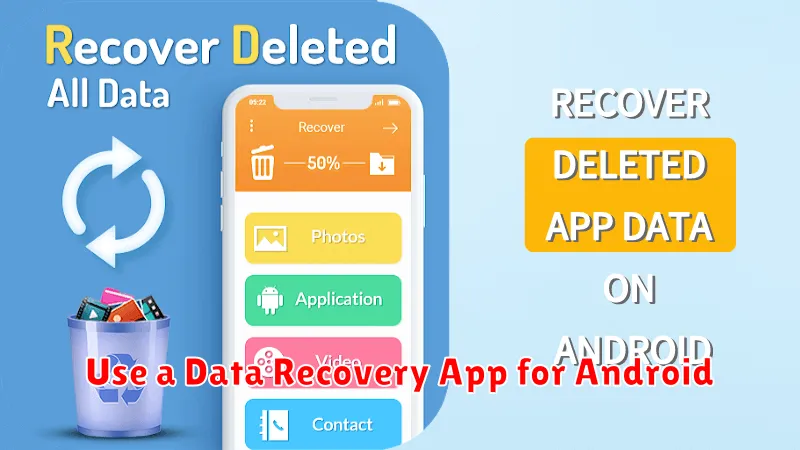
If the recently deleted folder and cloud backups don’t contain your lost photos, a data recovery app designed for Android offers another potential solution. These apps work by scanning your phone’s internal storage and sometimes even the SD card for traces of deleted files, including photos. It’s crucial to act quickly after discovering the photos are missing, as new data written to your phone can overwrite the deleted files, making recovery impossible.
Choosing a reputable data recovery app is important. Read reviews and compare features before installing one. Some apps may offer free trials or free versions with limited functionality, allowing you to assess their effectiveness before purchasing a premium version. Be aware that not all data recovery apps are created equal, and success is not guaranteed. Factors like how long ago the photos were deleted, the file system used by your device, and the extent of data overwritten since deletion all play a role.
Once you’ve installed an app, follow the on-screen instructions carefully. Typically, you’ll need to grant the app necessary permissions to access your phone’s storage. The scanning process may take some time, depending on the storage capacity and the app’s algorithms. Upon completion, the app will present a list of recoverable files. Preview the photos before recovery to ensure they are the ones you’re looking for. Finally, select the desired photos and choose a restore location, which can be a folder on your device or a cloud storage service.
Connect Your Android Phone to a Computer and Use Recovery Software
If the previously mentioned methods haven’t recovered your photos, connecting your Android phone to a computer and utilizing dedicated recovery software can be a viable option. This method often yields better results for photos that are no longer accessible through standard means.
First, ensure you have compatible recovery software installed on your computer. Several reputable options are available, both free and paid. Research and choose the software that best suits your needs and technical proficiency.
Next, connect your Android phone to the computer using a USB cable. You may need to enable USB debugging mode in your phone’s developer options. This allows the software to access the phone’s storage directly.
Once connected, launch the recovery software and follow the on-screen instructions. The software will typically scan your device’s storage for recoverable files, including deleted photos. The process can take time depending on storage capacity and the software’s capabilities. Upon completion, the software will display a list of recoverable files. Carefully select the desired photos and choose the appropriate recovery destination on your computer, not back onto the phone itself.
Contact a Professional Data Recovery Service if All Else Fails

If all previous methods have proven unsuccessful, your last resort is to contact a professional data recovery service. These services specialize in retrieving lost data from various storage devices, including Android phones.
Important Note: Professional data recovery can be expensive. The complexity of the recovery and the extent of data loss will influence the final cost. Be sure to obtain a quote beforehand.
When choosing a data recovery service, look for reputable companies with proven experience and positive customer reviews. Inquire about their success rates with similar cases and their data security practices. A reliable service will explain the recovery process clearly and provide transparent pricing information.
Be prepared to provide as much information as possible about how the data was lost. This can help the technicians diagnose the issue and increase the chances of successful recovery. Be aware that even professional services cannot guarantee 100% recovery, but they offer the best chance when all other options have been exhausted.
Prevent Future Photo Loss with Regular Backups
Losing photos can be devastating. The best way to avoid this heartache is to back up your photos regularly. This creates redundant copies of your precious memories, ensuring they’re safe even if your device is lost, stolen, or damaged.
There are several effective backup methods available:
- Cloud Storage: Services like Google Photos, Dropbox, and OneDrive offer automatic backups and convenient access from any device. Consider enabling automatic uploads to ensure your photos are consistently backed up.
- Computer Backups: Regularly transfer photos to your computer. You can connect your Android device via USB or use dedicated transfer software.
- External Storage: Consider using an external hard drive or USB drive for an additional layer of protection. Copy your photos to these devices periodically.
Choose the backup method that best fits your needs and establish a consistent backup routine. The frequency of backups depends on how often you take photos. If you frequently capture new images, consider daily or weekly backups. Less frequent photographers might opt for monthly backups.
Tips for Maximizing Data Recovery Success
Acting quickly is crucial after realizing photos have been deleted. The sooner you attempt recovery, the higher the likelihood of success. Continued device usage creates new data that can overwrite the deleted files, making them irretrievable.
Stop using your device immediately upon discovering the photo loss. Any new photos, videos, or app data can overwrite the deleted files. This includes taking new pictures, downloading apps, or even browsing the internet. Ideally, put the device in airplane mode to prevent automatic updates and background processes.
Choose your recovery software wisely. Research different options and select a reputable and reliable application. Read reviews and compare features before installing any software on your device.
Follow the software’s instructions carefully. Deviation from the recommended steps could decrease the chance of successful recovery.
