

Staying up-to-date with the latest Android version is crucial for accessing new features, enhanced security, and improved performance. This comprehensive guide provides a step-by-step approach on how to update your Android version seamlessly, ensuring a smooth transition and minimizing potential disruptions. Whether you’re a tech novice or an experienced user, this guide will equip you with the knowledge to update your Android device effectively. Learn how to check your current Android version, prepare your device for the Android update, and navigate the update process with ease. We’ll also address common issues encountered during Android updates and provide troubleshooting solutions.
This guide covers various methods for updating your Android, including over-the-air (OTA) updates, using your computer, and even exploring options for devices no longer receiving official updates. Understanding the different Android versions and their respective features is essential for making informed decisions about your device’s software. By following the steps outlined in this article, you can confidently update your Android phone or tablet and enjoy the latest advancements in the Android ecosystem. This guide is designed to simplify the process and make Android updates accessible to all users, regardless of their technical expertise.
Checking Your Current Android Version
Before updating your Android version, it’s essential to know your current version. This information helps determine compatibility with the latest update and allows you to track the changes between versions.
Locating your Android version is a straightforward process. Follow these simple steps:
- Open your device’s Settings app. This is typically represented by a gear or cogwheel icon.
- Scroll down and tap on “About Phone” or “About Device.” The exact wording may vary slightly depending on your Android device and manufacturer.
- Look for “Android Version” or “Software Information.” This will display your current Android version number (e.g., Android 12, Android 13, etc.).
Take note of this information. It’s crucial for the next steps in the update process.
Backing Up Your Data Before Updating
Before initiating any system update, it’s crucial to back up your data. This precautionary step safeguards your personal information against unforeseen issues that may arise during the update process, such as data corruption or loss.
There are several methods to back up your Android device. You can back up your data using your Google account. Most Android devices offer an integrated backup feature accessible through the settings menu. This typically backs up data such as contacts, photos, and videos stored on the device.
Alternatively, some manufacturers provide their own backup solutions. Consult your device’s user manual for specific instructions on using manufacturer-specific backup tools.
Consider which data is most important to you. Certain apps may have their own internal backup mechanisms, which you should utilize. Ensure that the chosen backup method encompasses all essential data.
Connecting to a Stable Wi-Fi Network
Before initiating the Android update process, ensure you are connected to a stable Wi-Fi network. Updating over a cellular network can incur significant data charges and may be interrupted by network instability, potentially causing issues with the update installation.
To connect to Wi-Fi, open your device’s Settings app. Locate and select the Wi-Fi option. Choose your preferred network from the available list and enter the password if required. Confirm that the Wi-Fi icon appears in your status bar, indicating a successful connection.
A strong and stable Wi-Fi connection is essential for a smooth and successful update. Avoid using public Wi-Fi networks for this process, as they can be unreliable. If your Wi-Fi signal is weak, try moving closer to your router for a better connection.
Accessing System Updates in Settings
Locating the system updates section may vary slightly depending on your Android device’s manufacturer and model. However, the general process is similar across most devices. This guide provides a generalized approach, and you may need to adjust slightly based on your specific phone.
First, open your device’s Settings app. This is typically represented by a gear or cogwheel icon.
Next, scroll down and look for an option labeled “System,” “About Phone,” or something similar. The precise wording can differ between Android versions and manufacturers. Tap on this option.
Within the System or About Phone menu, look for “System updates,” “Software update,” or a similar entry. This is the section where you’ll find information about your current Android version and available updates.
Some devices may have an additional step, requiring you to navigate to a sub-menu labeled “Advanced” before you see the “System updates” option. If you can’t find the relevant option immediately, explore any sub-menus within the System section.
Downloading and Installing the Update
Once you’ve located the available update, the next step is initiating the download and installation process. Tap the “Download” button. The size of the update will determine the download time, so ensure you are still connected to a stable Wi-Fi network. You can continue to use your device during the download, but be mindful of other apps consuming bandwidth.
After the download completes, you’ll receive a notification or an on-screen prompt to install the update. Before proceeding, ensure your device has sufficient battery life, ideally at least 50%, to prevent interruption during the installation. If your battery is low, connect your device to a charger.
Tap “Install” to begin the installation process. Your device will reboot and begin applying the update. This process can take several minutes, so avoid interrupting it by pressing any buttons or attempting to power off the device. A progress bar will typically be displayed, indicating the installation status.
Upon successful completion, your device will restart automatically, and you will be running the updated Android version. You can confirm this by revisiting the “Software Update” section in your settings and checking the Android version number.
Troubleshooting Common Update Issues
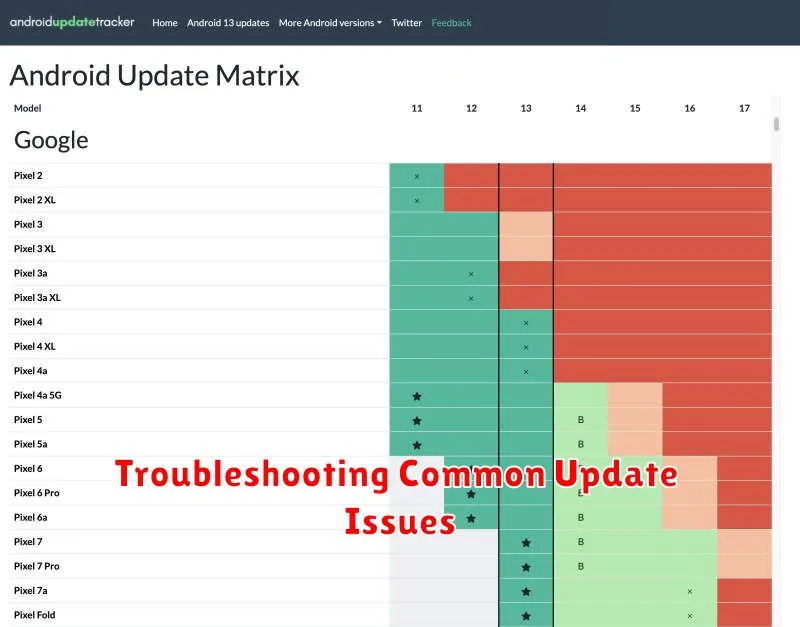
Sometimes, the update process doesn’t go as planned. Here are some common issues and how to address them:
Insufficient Storage Space
Error Message: “Insufficient storage available.” This is a frequent problem. Before updating, ensure you have enough free space. Delete unnecessary apps, photos, or videos.
Slow Download Speeds
Problem: The update downloads very slowly. Solution: Connect to a stable Wi-Fi network. Avoid downloading during peak network usage times.
Update Fails to Install
Problem: The update downloads, but fails to install. Solution: Try restarting your device. If the problem persists, clear the cache of the Google Play Store (or your device’s update app) in your device’s settings.
Device Overheating
Problem: Your device gets hot during the update. Solution: This can be normal, but excessive heat is a concern. Ensure your device is well-ventilated. Avoid using it while updating.
Verifying the Update Installation
After the update process completes, it’s crucial to verify that the new Android version has been successfully installed. Several ways to confirm this include checking the “About Phone” settings.
Navigate to your device’s settings menu. Typically, this is done by pulling down the notification shade and tapping the gear icon. Scroll down and look for “About Phone” or a similarly named option (e.g., “System,” “Software Information”). Tap on it.
Look for “Android Version” or “Software Version.” The number displayed here should reflect the updated version you just installed. This confirms that the update was successfully applied to your device.
You can also observe visual changes in the user interface, such as new icons or features, which indicate a successful update. Check for any new functionalities mentioned in the update changelog to further confirm the installation.
Tips for a Smooth Update Process

Before initiating the update, ensure your device has sufficient battery life. A full charge or at least 50% battery is recommended to prevent interruption during the process. Connecting your device to a power source throughout the update is also a good practice.
A stable Wi-Fi connection is crucial for a smooth download and installation. Avoid using mobile data for large updates, as this can incur unexpected charges and potentially interrupt the download. Connect to a reliable Wi-Fi network before beginning the update process.
Back up your data before proceeding. While updates rarely cause data loss, it’s a prudent measure to safeguard your important information. Utilize your device’s built-in backup features or cloud services to ensure your data is secure.
