

Experiencing an unresponsive Android touchscreen can be incredibly frustrating. Whether your screen is completely frozen, experiencing lag, or only partially responding to your touch, it effectively renders your device unusable. This article addresses the common causes of a frozen Android screen and provides effective solutions to help you regain control and unfreeze your screen. Understanding the underlying issues, from simple software glitches to more complex hardware problems, is the first step towards resolving this frustrating predicament.
From basic troubleshooting steps like a soft reset or force restart, to more advanced techniques involving Safe Mode or clearing the cache partition, we’ll explore a range of solutions to help you fix your unresponsive touchscreen. Whether you’re dealing with a temporary glitch or a more persistent problem, this guide aims to provide you with the knowledge and tools necessary to unfreeze your Android screen and restore your device’s functionality. We will cover solutions suitable for a variety of Android devices and situations, empowering you to troubleshoot and resolve this common issue effectively.
Identifying the Cause of Unresponsiveness
A frozen Android touchscreen can stem from various issues, ranging from simple software glitches to more complex hardware problems. Pinpointing the root cause is the first step towards resolving the issue. Begin by considering recent actions: did the unresponsiveness occur after installing a new app, updating the operating system, or experiencing a physical impact?
Recent app installations can sometimes conflict with existing software or consume excessive system resources, leading to a frozen screen. Software updates, while generally beneficial, can occasionally introduce bugs that affect touchscreen functionality. Physical damage, such as a cracked screen or water exposure, can also disrupt the digitizer’s ability to register touch input.
Additionally, consider the duration and frequency of the unresponsiveness. Is it a persistent issue or an occasional occurrence? Does it happen only when using specific apps or performing particular tasks? These details can provide valuable clues in identifying the underlying cause.
Performing a Soft Reset
A soft reset, also known as a restart, is the first and often most effective solution for an unresponsive touchscreen. It essentially reboots your device’s operating system, clearing any temporary glitches or minor software conflicts that may be causing the unresponsiveness.
Unlike a factory reset, a soft reset does not delete any personal data from your device. It simply closes all running applications and restarts the system.
To perform a soft reset, typically you need to press and hold the power button. The exact duration might vary depending on your specific Android device, but generally, it’s around 10-20 seconds. A menu will appear on the screen. Select the “Restart” or “Reboot” option. If your screen is completely unresponsive, preventing you from interacting with the menu, you may need to hold the power button longer until the device shuts down completely. Then, press the power button again to turn it back on.
After the restart process completes, check if your touchscreen is now responsive.
Checking for Physical Damage or Obstructions
A non-responsive touchscreen can sometimes be attributed to physical damage or obstructions. Carefully inspect your device’s screen for any visible cracks, chips, or scratches. Even minor damage can interfere with the touchscreen’s functionality.
Screen Protector Issues: If you use a screen protector, ensure it’s properly applied and free of bubbles or debris. A poorly fitted or damaged screen protector can impede touch sensitivity. Try removing the screen protector to see if the responsiveness improves.
Foreign Objects: Check for any foreign objects lodged between the screen and the device’s body. Dust, dirt, or even small particles can disrupt the touchscreen’s ability to register input. Gently clean the screen’s edges with a soft, dry cloth.
Water Damage: While many modern Android devices have some level of water resistance, liquid damage can still affect the touchscreen. If you suspect water damage, do not attempt to power on the device. Instead, seek professional repair assistance.
Booting into Safe Mode
Safe mode is a diagnostic tool that allows you to run your Android device with only the pre-installed applications active. This can help determine if a third-party app is causing your touchscreen to become unresponsive. If your touchscreen works normally in safe mode, a recently installed app is likely the culprit.
The process for entering safe mode varies slightly depending on your device’s manufacturer and Android version. Generally, you can access it by holding the power button as if you were powering off your device. When the power menu appears, long-press the “Power off” option. You should then see a prompt to reboot into safe mode. Confirm and allow your device to restart.
Once in safe mode, you’ll notice “Safe mode” displayed in the bottom-left corner of the screen. Test your touchscreen functionality. If the issue is resolved, uninstall recently installed apps one by one until the problem is gone. To exit safe mode, simply restart your device normally.
Clearing App Cache and Data
Sometimes, a misbehaving app can cause touchscreen unresponsiveness. Clearing the app’s cache and data can resolve this issue. It’s important to note that clearing data will reset the app to its default settings and you will lose any unsaved progress within the app. Always try clearing the cache first before resorting to clearing data.
To clear an app’s cache and data, follow these steps:
- Navigate to Settings.
- Tap on Apps (or Applications, depending on your device).
- Find and select the app you suspect is causing the issue.
- Tap on Storage.
- Tap on Clear Cache. Test your touchscreen. If the problem persists, proceed to the next step.
- Tap on Clear Data (or Clear Storage). Confirm your choice.
After clearing the cache and/or data, retest your touchscreen’s responsiveness.
Updating or Uninstalling Problematic Apps
Sometimes, a misbehaving app can cause touchscreen unresponsiveness. Check for recent app updates that might coincide with the start of the problem. If you suspect a specific app, try updating it to the latest version. Often, updates include bug fixes that resolve such issues.
If updating doesn’t help, uninstalling the suspected app is the next step. This can isolate whether the app is the root cause of the unresponsiveness. If the problem resolves after uninstalling, you can try reinstalling the app again later. Sometimes a clean install fixes underlying software conflicts.
To uninstall an app when your touchscreen is unresponsive, you’ll need to use a computer and connect your Android device. Using platform tools specific to your device’s manufacturer, you can uninstall apps remotely.
Factory Reset as a Last Resort
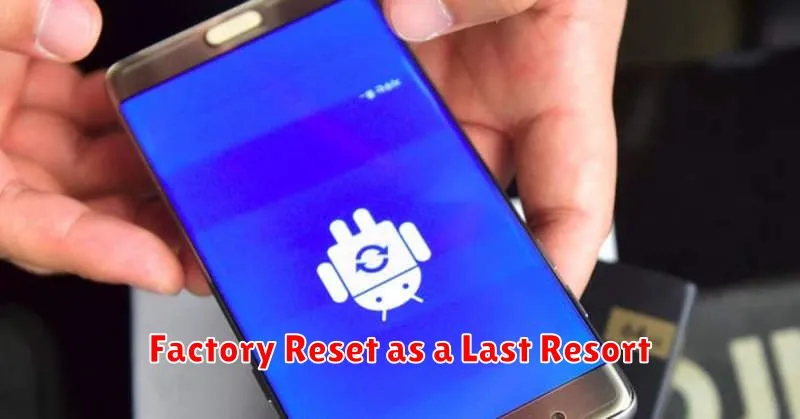
If all other troubleshooting steps fail to resolve the unresponsive touchscreen, a factory reset may be necessary. This should be considered a last resort because it will erase all data on your device. Back up any important data before proceeding, if possible. Note that if your touchscreen is completely unresponsive, backing up data may be impossible.
The process for factory resetting an Android device can vary slightly depending on the manufacturer and Android version. Generally, it involves accessing the Recovery Mode. This is usually done by holding a combination of buttons while the device is powered off. Common combinations include Power + Volume Up, Power + Volume Down, or Power + Volume Up + Home. Consult your device’s documentation for the specific key combination.
Once in Recovery Mode, navigate using the volume buttons and select “Wipe data/factory reset” using the power button. Confirm your choice, and the device will begin the reset process. After completion, your device will restart and return to its factory settings.
Seeking Professional Repair

If all troubleshooting steps fail to revive your unresponsive touchscreen, it’s time to consider professional repair. This is especially important if you suspect a hardware issue, such as physical damage or internal component failure.
Authorized Service Centers: Contacting your device manufacturer’s authorized service center is often the best starting point. They have trained technicians and access to genuine parts, ensuring a proper diagnosis and repair. Be prepared to provide details about your device model, warranty status, and the troubleshooting steps you’ve already taken.
Third-Party Repair Shops: Local, reputable third-party repair shops can sometimes offer a faster or more affordable alternative. However, it’s crucial to research their reputation and ensure they have experience with your specific device model. Inquire about warranties on their repairs and the quality of parts they use.
Data Backup: Before handing your device over for repair, back up any important data if possible. Although professional technicians strive to preserve user data, there’s always a risk of data loss during complex repairs. Cloud backups or transferring files to a computer are good options when feasible.
