
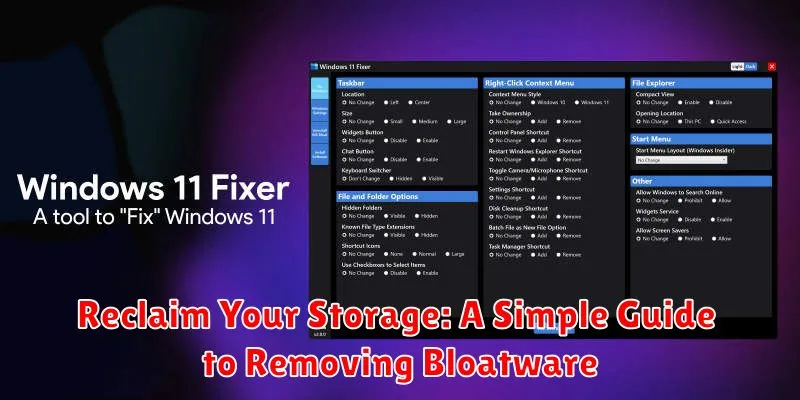
Is your device constantly running out of storage? Do you find yourself deleting precious photos and videos just to make space for essential apps? You’re not alone. Many electronic devices, from smartphones to laptops, come pre-loaded with bloatware – unnecessary applications that consume valuable disk space and system resources. This often unwanted software can slow down your device and make it difficult to install the programs you actually need. This comprehensive guide will equip you with the knowledge and tools to reclaim your storage by effectively and safely removing bloatware. Learn how to identify, disable, and uninstall these space-hogging applications and optimize your device’s performance.
This simple, step-by-step guide will walk you through the process of removing bloatware, regardless of your technical skill level. We’ll cover various methods, from using built-in system tools to utilizing specialized third-party software. By the end of this article, you’ll be able to free up significant storage space, improve your device’s speed, and take back control of your digital environment. Reclaim your storage today and experience the benefits of a cleaner, faster, and more efficient device.
Identifying Bloatware on Your Device
Bloatware refers to pre-installed applications that often consume valuable storage space and system resources without providing significant user benefit. Identifying these apps is the first step towards reclaiming your device’s performance and storage.
Look for apps you don’t recognize or remember installing. These could be trial versions of software, manufacturer-specific apps, or utility apps you simply don’t use. Often, these apps have generic-sounding names or functions that overlap with core system functionalities.
Check app usage. If you find apps consuming resources in the background despite never using them, they might be classified as bloatware. Monitor battery drain as some bloatware can significantly impact battery life even when not actively in use.
Pay attention to app permissions. Bloatware sometimes requests excessive permissions that don’t align with their intended function. This can be a red flag, indicating potential privacy concerns or resource overuse.
Built-in Methods for Removing Bloatware
Many operating systems offer built-in methods for uninstalling or disabling unwanted applications. These methods often provide a safe and straightforward approach to bloatware removal without needing third-party tools.
For example, on many versions of Android, you can uninstall apps directly through the settings menu. Simply navigate to the “Apps” or “Applications” section, select the unwanted app, and choose “Uninstall.” Some pre-installed system apps may not offer an uninstall option but can often be disabled. Disabling an app prevents it from running in the background and consuming resources, effectively removing its impact on your device. However, it’s important to note that the specific steps may vary slightly depending on your device’s manufacturer and Android version.
On Windows systems, you can remove some pre-installed apps through the “Apps & features” section of the settings. Look for the undesired app, select it, and click “Uninstall.” Similar to Android, certain system apps might not be fully uninstallable but might offer a “Modify” option, allowing you to remove optional features and reduce their footprint.
Using Third-Party Apps to Uninstall Bloatware

While built-in methods can handle some pre-installed apps, third-party apps often provide more advanced options for bloatware removal. These apps can identify a wider range of bloatware, including system apps that are typically protected. It’s crucial to research and choose a reputable app from a trusted source.
These apps typically work by analyzing your installed applications and flagging potential bloatware. Some offer batch uninstall features, allowing you to remove multiple apps simultaneously. They may also provide information about each app, such as its size and permissions, to help you make informed decisions.
Important Note: Exercise caution when using third-party apps, especially those requiring root access. Modifying system files carries inherent risks, including potential instability or data loss if not used correctly.
Safe Bloatware Removal Practices
Removing bloatware can free up valuable storage space and improve device performance. However, it’s crucial to follow safe practices to avoid unintended consequences. Back up your device before making any changes. This allows you to restore your system if something goes wrong during the removal process.
Research the apps thoroughly. Understand the function of each app before uninstalling it. Some pre-installed apps might seem unnecessary but could be essential for system stability or specific features. Online forums and communities can provide valuable insights into the purpose and importance of different apps.
Start with disabling. If possible, disable the bloatware first rather than completely uninstalling it. This allows you to revert the changes if any issues arise. If disabling resolves the storage issue and doesn’t affect functionality, you can proceed with uninstalling later.
Use reputable tools. If you opt for third-party apps to remove bloatware, choose reputable and well-reviewed options from trusted sources. Avoid using unknown or unverified tools, as these could potentially harm your device or install unwanted software.
Potential Risks and Precautions
While removing bloatware can free up valuable storage space and improve device performance, it’s crucial to proceed with caution. Incorrectly removing system applications can lead to instability or even brick your device. Therefore, it’s essential to understand the potential risks and take necessary precautions.
Backing up your device before attempting any bloatware removal is paramount. This ensures that you can restore your device to its previous state if any issues arise. Familiarize yourself with the specific bloatware removal method you’re using, whether it’s a built-in system feature or a third-party app. Each method has its own set of procedures and risks.
Exercise extreme caution when removing system apps. Some pre-installed apps might seem unnecessary but could be crucial for core functionalities. Research thoroughly before uninstalling any system application to avoid unintended consequences. If unsure about an app’s function, it’s best to leave it untouched.
Freeing Up Space After Bloatware Removal

After removing bloatware, several techniques can further optimize your device’s storage. Emptying the recycle bin or trash folder is a crucial first step. Files deleted from your system are often moved to a temporary location and still occupy space until this folder is emptied.
Next, consider clearing your browser’s cache and cookies. These temporary files can accumulate and consume significant storage over time. While some cookies are essential for website functionality, clearing them periodically can free up valuable space.
Running a disk cleanup utility can identify and remove unnecessary system files, such as temporary files, logs, and previous Windows installations. This is a built-in feature on many operating systems.
Finally, uninstall unused applications. Identify apps that you rarely or never use and uninstall them to reclaim storage. Be mindful of pre-installed apps that might be necessary for system functionality.
Maintaining a Bloatware-Free Device
Keeping your device free from bloatware requires ongoing vigilance. Regularly review installed applications. Unwanted apps can reappear through automatic updates or bundled software installations.
Exercise caution when downloading apps. Stick to official app stores and research apps before installing them. Read reviews and pay attention to permissions requested. Overly broad permissions can be a red flag.
When setting up a new device, carefully examine pre-installed applications. Opt out of any unnecessary software during the setup process. This proactive approach minimizes initial bloatware.
Periodically check for system updates. Updates often include optimizations and can sometimes remove bloatware pre-installed by the manufacturer. Staying updated helps maintain a clean and efficient system.
