
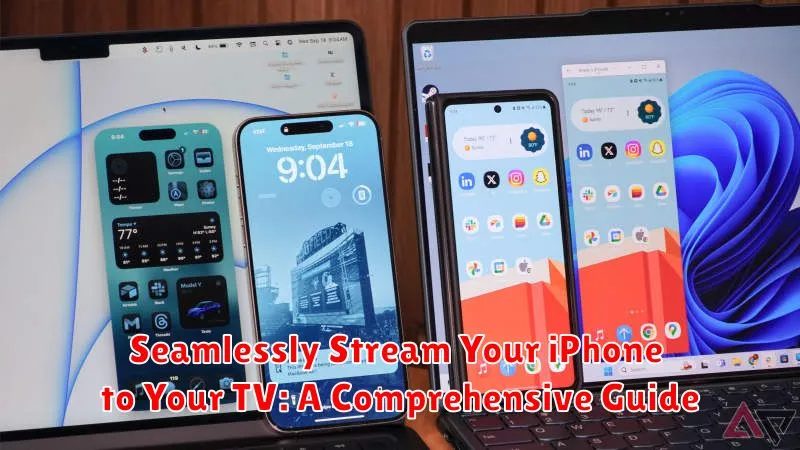
Want to enjoy your iPhone’s content on the big screen? This comprehensive guide provides everything you need to know to seamlessly stream your iPhone to your TV. Whether you’re looking to mirror your iPhone screen for presentations, share photos and videos with family and friends, or enjoy your favorite streaming apps on a larger display, we’ll cover the various methods and provide step-by-step instructions to make the process effortless. Learn how to stream your iPhone using AirPlay, screen mirroring, and other popular methods. We’ll also discuss the necessary equipment, troubleshooting tips, and address common challenges to ensure a smooth and enjoyable streaming experience.
Streaming your iPhone to your TV has never been easier. This guide will walk you through the process of connecting your iPhone to various TV brands and models, including smart TVs and those requiring additional hardware like Apple TV or other streaming devices. We’ll compare and contrast different iPhone streaming methods, highlighting their advantages and disadvantages, to help you choose the best approach based on your specific needs and available equipment. Discover the optimal way to seamlessly stream your iPhone content and enhance your viewing experience today.
Understanding iPhone Mirroring Options
Mirroring your iPhone’s screen to your TV opens up a world of possibilities, from sharing photos and videos with family to enjoying mobile games on a larger display. Before diving in, it’s essential to understand the different mirroring options available for your iPhone.
Primarily, iPhone mirroring relies on two key technologies: AirPlay and wired connections using HDMI adapters. AirPlay offers a seamless wireless streaming experience, leveraging your Wi-Fi network to transmit content from your iPhone to an Apple TV or other AirPlay-compatible smart TVs. This method is generally preferred for its convenience and cable-free setup.
Alternatively, HDMI adapters provide a direct physical connection between your iPhone and your TV. This method involves using a Lightning to Digital AV Adapter or a similar accessory. While requiring a cable, this option can offer a more stable connection and is compatible with a broader range of televisions, even those without smart functionalities.
Choosing the right mirroring method depends on your specific needs and available equipment. Consider factors like convenience, compatibility, and the type of content you intend to stream when making your selection.
Using AirPlay for Wireless Streaming
AirPlay is a wireless streaming technology that allows you to mirror your iPhone’s screen to an Apple TV or other AirPlay 2-compatible smart TV. This method offers a convenient and cable-free experience for sharing content.
To use AirPlay, ensure your iPhone and the receiving device (Apple TV or smart TV) are connected to the same Wi-Fi network. This shared connection is crucial for AirPlay functionality.
Initiating AirPlay:
- Open Control Center on your iPhone. Swipe down from the top-right corner (iPhone X and later) or swipe up from the bottom (older iPhones).
- Tap the Screen Mirroring icon.
- Select your Apple TV or AirPlay 2-compatible TV from the list of available devices.
Once connected, your iPhone’s screen will be mirrored to the TV. Anything you do on your phone, from playing videos to browsing photos, will be displayed on the larger screen.
Stopping AirPlay:
- Open Control Center on your iPhone.
- Tap the Screen Mirroring icon.
- Select Stop Mirroring.
Connecting with HDMI Adapters and Cables
A wired connection offers a reliable and stable way to mirror your iPhone to your TV, especially in environments with congested Wi-Fi networks. This involves using an HDMI adapter specifically designed for iPhones and a standard HDMI cable.
The primary adapter needed is Apple’s Lightning Digital AV Adapter or a compatible third-party equivalent. This adapter connects to your iPhone’s Lightning port and provides an HDMI output to connect to your television. You’ll also need a standard HDMI cable to connect the adapter to the HDMI input port on your TV.
Setup is straightforward:
- Plug the Lightning end of the adapter into your iPhone.
- Connect the HDMI cable to the adapter and then to an available HDMI port on your TV.
- Turn on your TV and select the correct HDMI input source.
Your iPhone’s screen should then be mirrored on your TV. Audio will also be routed through the HDMI connection.
Third-Party Apps for Screen Mirroring
While AirPlay is a convenient solution for Apple devices, third-party screen mirroring apps offer extended compatibility and features. These apps often bridge the gap between different operating systems, enabling you to mirror your iPhone to TVs or other devices that don’t natively support AirPlay. They can be particularly helpful for mirroring to Android TVs, gaming consoles, or Windows PCs.
Choosing the Right App: The app store offers a variety of screen mirroring apps. Consider factors such as device compatibility, ease of use, and additional features like streaming local content or recording your screen. Read reviews and compare features before selecting an app.
Typical Setup: Most third-party mirroring apps require both your iPhone and receiving device to be connected to the same Wi-Fi network. The app will guide you through the connection process, which generally involves selecting the target device from a list of available devices on the network.
Benefits and Limitations: Third-party apps provide flexibility but can sometimes introduce latency or require in-app purchases to unlock full functionality. Ensure your chosen app supports the desired video resolution and features for an optimal viewing experience.
Troubleshooting Common Mirroring Issues
Experiencing difficulties mirroring your iPhone? Here are some common issues and their solutions.
Network Connectivity Problems
Check your Wi-Fi: Ensure both your iPhone and Apple TV (or AirPlay 2-compatible smart TV) are connected to the same Wi-Fi network. Restart your router: A simple router reboot can often resolve connectivity hiccups. Check for network interference: Other devices heavily using your Wi-Fi network can impact mirroring performance.
Device Compatibility Issues
Verify compatibility: Confirm that your TV or streaming device supports AirPlay or that you have the correct adapter for wired connections. Update software: Ensure your iPhone and receiving device have the latest software updates installed.
Display Problems
Check the input source: Make sure your TV is set to the correct HDMI input if using a wired connection. Adjust display settings: Explore your iPhone’s display settings to ensure the correct aspect ratio and resolution are selected for mirroring. Restart devices: Restarting both your iPhone and your TV can often resolve display-related problems.
Tips for Optimal Viewing Experience
Optimizing your iPhone-to-TV streaming setup can significantly enhance your viewing pleasure. A few key adjustments can make a world of difference.
Firstly, ensure your iPhone’s software and apps are up-to-date. Updates often include performance improvements that directly impact streaming quality.
Network Connectivity plays a vital role. A strong and stable Wi-Fi connection is crucial for smooth, uninterrupted streaming. If possible, connect your TV and iPhone to the same 5 GHz Wi-Fi network for optimal bandwidth.
Consider your TV settings as well. Adjust brightness, contrast, and sharpness to suit your viewing environment and the content being streamed. Some TVs offer specific picture modes optimized for streaming content; explore these options.
Finally, minimize distractions. Dimming the lights in your viewing area can create a more immersive experience, much like a dedicated home theater.
Mirroring Specific Content vs. Entire Screen
Choosing between mirroring specific content and your entire iPhone screen depends largely on your viewing needs. Targeted mirroring offers a more curated experience, allowing you to share only the content you intend your audience to see, such as photos, videos, or presentations. This method minimizes distractions and ensures privacy for other content on your device.
Conversely, full-screen mirroring replicates your iPhone’s display exactly on your TV. This is ideal for activities like gaming, browsing websites, or demonstrating app usage. While convenient for displaying dynamic content, remember that notifications and other on-screen activity will also be visible.
Consider the context and purpose of your mirroring session to determine the most appropriate approach. If privacy and focused viewing are paramount, mirroring specific content is the preferred option. If showcasing a broader range of activities or interactive applications is necessary, then mirroring the entire screen is more suitable.
Exploring Advanced Mirroring Features
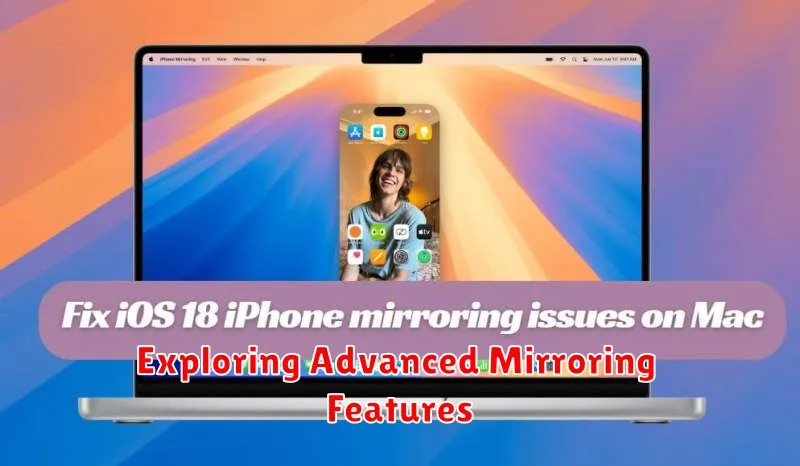
Beyond basic screen mirroring, several advanced features can enhance your iPhone-to-TV streaming experience. AirPlay 2, for instance, allows for multi-room audio streaming. This means you can mirror your iPhone to your TV while simultaneously playing audio on other AirPlay 2 compatible speakers throughout your home.
Gaming enhancements can also significantly improve responsiveness. Some games optimize performance when mirrored via AirPlay, reducing latency for a smoother, more immersive experience. Look for games that specifically advertise AirPlay optimization for the best results.
Additionally, specific apps offer customized mirroring options. Some video conferencing platforms, for example, allow you to mirror only the presentation while keeping other on-screen elements private. Explore the settings within your frequently used apps to discover any unique mirroring capabilities they may offer.
