
Tired of incessant robocalls, spam calls, and unwanted solicitations interrupting your day? Blocking unwanted calls on your Android device is a crucial skill in today’s connected world. This comprehensive guide provides a detailed walkthrough of various methods to effectively block calls and reclaim your peace and quiet. Whether you’re dealing with a persistent telemarketer, an unknown number, or a contact you’d rather avoid, this guide will empower you to take control of your incoming calls and say goodbye to unwanted calls for good.
From utilizing built-in Android call blocking features to exploring third-party apps specifically designed for call blocking, we cover a range of options to suit your needs. Learn how to block a number permanently, create blocklists for multiple numbers, and even identify potential spam calls before they reach you. This guide will equip you with the knowledge and tools necessary to effectively manage your calls and ensure that only the calls you want to receive get through. Take charge of your phone and say goodbye to unwanted calls starting today.
Identifying and Blocking Specific Numbers
Pinpointing and blocking unwanted calls from specific numbers is often the first line of defense against spam and harassment. There are several ways to identify these numbers and subsequently block them.
Often, unwanted calls originate from numbers you don’t recognize. Check your recent calls list and note any unfamiliar numbers. If a number repeatedly calls without leaving a voicemail, or if the call itself is suspicious (e.g., robocalls, scams), it’s likely a candidate for blocking. Caller ID apps can also be helpful in identifying unknown numbers, sometimes revealing the caller’s name or associated business, even if the number isn’t saved in your contacts.
Once you’ve identified the offending number, the process of blocking it is usually straightforward. Most Android devices allow you to block numbers directly from the recent calls list. Typically, you can tap and hold the number, then select the option to block or add to the reject list. This process may vary slightly depending on your device’s manufacturer and Android version.
Using Your Android’s Built-in Call Blocking Features
Most Android devices come equipped with built-in features to block unwanted calls, eliminating the need for third-party apps. These features are generally easy to access and use.
Typically, you can block a number directly from your recent calls list. Long-press the offending number and select the option to “Block” or “Add to reject list.” The exact wording may vary slightly depending on your device’s manufacturer and Android version.
Alternatively, you can block numbers through the Phone app settings. Open your Phone app, access the settings menu (usually indicated by three dots or lines), and look for options like “Call blocking,” “Blocked numbers,” or “Call reject.” From there, you can manually add numbers to your block list.
Important Note: The steps might vary slightly depending on your Android version and phone manufacturer. Consult your device’s user manual for specific instructions.
Exploring Third-Party Call Blocking Apps
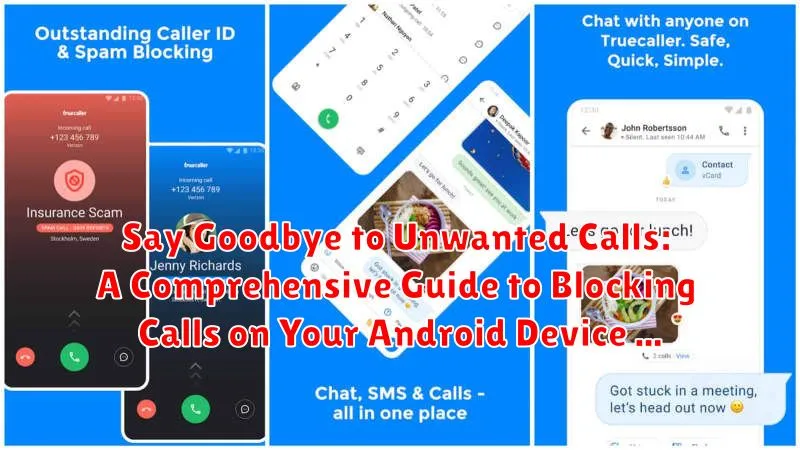
While built-in features offer a baseline level of protection, exploring third-party call blocking apps can provide more advanced control and flexibility over unwanted calls. These apps often come equipped with extensive databases of known spam numbers, automatic blocking capabilities, and customizable filtering options.
When choosing a third-party app, consider factors like user reviews, features offered, and any potential privacy implications. Some popular options include apps dedicated solely to call blocking and others that incorporate it as part of a larger suite of communication features. Always review the app’s permissions before installing to understand what data it accesses.
Key features to look for in a third-party call blocking app include:
- Real-time caller ID: Identifying unknown numbers before you answer.
- Spam number databases: Automatic blocking of known spam and scam callers.
- Customizable block lists: Adding specific numbers to your block list manually.
- Block categories: Blocking calls from specific categories like telemarketers or debt collectors.
- Scheduling: Setting specific times for call blocking to activate.
Blocking Calls from Unknown or Private Numbers
Dealing with calls from unknown or private numbers can be particularly frustrating. Thankfully, Android provides options to help manage these unwanted interruptions. Blocking these calls can significantly reduce spam and unwanted solicitations.
Most Android phones offer a built-in feature to silence or block unknown callers. This feature is often found within the Phone app’s settings. Look for options like “Block unknown callers,” “Silence unknown callers,” or “Filter spam calls.” Enabling this feature will typically send calls from numbers not in your contact list directly to voicemail, or silence the call entirely.
It’s important to note that blocking all unknown numbers may inadvertently block calls from legitimate sources, like hospitals or delivery services. Consider the potential impact before activating this feature. If you’re expecting an important call from an unknown number, it’s advisable to temporarily disable the blocking feature.
Managing Your Blocked Call List
Effectively managing your blocked call list is crucial for maintaining control over unwanted communications. Regular review and adjustments ensure that legitimate calls aren’t inadvertently blocked while keeping unwanted callers at bay. Accessibility to your blocked list varies depending on your Android device and version.
Typically, you can find your blocked numbers list within your phone app’s settings. Look for options like “Call settings,” “Blocked numbers,” or “Call blocking.” Some Android versions may place this within the recent calls menu, accessible via a three-dot menu icon.
Once located, you can add or remove numbers from the blocked list. Some devices offer additional features such as viewing timestamps of blocked calls or the ability to unblock all numbers at once. Familiarize yourself with these options to customize your blocking preferences.
Regularly reviewing your blocked call list allows you to identify potentially important numbers that might have been mistakenly blocked. It also helps to maintain a clean and organized list for optimal call management.
Reporting Spam Calls for Enhanced Protection
Reporting spam calls helps protect yourself and others from fraudulent activities and unwanted solicitations. By reporting these calls, you contribute valuable data that helps carriers and authorities identify and combat spam callers. Reporting a spam call is typically a straightforward process, directly through your phone app or via third-party apps designed for this purpose.
Most Android phones allow you to report a number directly after a call. Look for options like “Report spam” or “Block/report spam” next to the caller’s information. Alternatively, you can often report the number by long-pressing it in your recent calls list. Third-party call blocking apps may also offer built-in reporting mechanisms. These apps frequently maintain databases of reported spam numbers, which can increase blocking effectiveness.
When reporting, providing details about the call can be useful. This might include the nature of the call (robocall, scam, etc.), the content of the call, and the caller’s claimed identity. While not always mandatory, these additional details can assist in identifying patterns and taking action against spam operations. Remember to check your phone’s settings and chosen call blocking app for the specific reporting procedures available.
Advanced Call Blocking Settings and Configurations
Beyond basic call blocking, your Android device offers advanced settings for a more personalized and robust defense against unwanted calls. Explore these options to fine-tune your call blocking experience:
Custom Block Lists
Many Android devices allow you to create custom block lists. This feature allows you to manually add numbers to a blocked list, giving you granular control over who can contact you. Add frequently occurring spam numbers or specific individuals you wish to avoid.
Blocking Unknown or Private Numbers
For enhanced privacy, consider blocking calls from unknown or private numbers. This setting will prevent calls from numbers that are not in your contacts list or that have withheld their caller ID. Be mindful that this may block legitimate calls from businesses or individuals who choose to maintain their privacy.
Schedule Call Blocking
Take advantage of scheduled call blocking if your device supports it. This feature lets you specify times when you want calls to be blocked, such as during meetings or overnight. This is a proactive approach to ensuring uninterrupted periods of time.
Third-Party Call Blocking Apps
Consider exploring third-party call blocking apps available on the Google Play Store. These apps often provide advanced features such as identifying spam callers based on community reports and offering more extensive blocking customization options.
Troubleshooting Common Call Blocking Issues

Occasionally, you might encounter issues with your call blocking settings. Here are some common problems and their solutions:
Blocked Calls Still Getting Through
If blocked numbers are still reaching you, ensure the correct number is blocked. Double-check the number format and any potential variations (e.g., +1, area code). Verify that the blocking feature is activated for the specific contact or number. Some devices have separate settings for blocking calls and messages.
Unable to Block Specific Numbers
If you can’t block a number, ensure your device’s software is up-to-date. Outdated software can sometimes cause conflicts with call blocking functionality. Restarting your device can also resolve temporary glitches. If the issue persists, check your phone’s user manual or contact your carrier for support.
Accidental Blocking
If you’ve accidentally blocked a legitimate contact, navigate to your block list and remove the number or contact. Be sure to confirm the number before removing it to avoid unintentionally unblocking spam calls.
