
Is your phone constantly reminding you that you’re running out of storage? A full phone can be incredibly frustrating, limiting your ability to take new photos, download apps, and even receive messages. Fortunately, reclaiming valuable internal storage space on your phone is often easier than you think. This article will guide you through simple yet effective tricks to free up space and maximize your phone’s storage capacity, allowing you to enjoy its full potential once again without resorting to deleting precious memories or essential applications.
Learn how to quickly identify storage-hogging culprits and implement practical strategies to free up internal storage. From clearing cached data and managing downloaded files to leveraging cloud storage solutions and uninstalling unused apps, these simple tricks will help you optimize your phone’s performance and keep it running smoothly. Discover how to take control of your phone’s storage and say goodbye to those pesky low storage warnings.
Identify Storage Hogs
Before you start deleting files randomly, it’s crucial to understand what’s consuming the most space on your device. Most modern smartphones offer built-in tools to analyze storage usage. Look for a “Storage” or “Storage Management” option within your phone’s settings.
This feature typically provides a visual breakdown of your storage, categorized by data type (photos, videos, apps, etc.). Pay close attention to the categories occupying the largest portions of your internal storage. This will help you pinpoint the main culprits and prioritize your cleaning efforts.
For example, you might discover that your photos and videos are taking up a significant amount of space. Or, you might find that a particular game you rarely play is surprisingly large. This information is key to reclaiming valuable storage.
Clear App Cache and Data
Over time, apps accumulate temporary files and data that can consume significant storage space. Clearing the cache and data can reclaim this space without losing essential app settings.
Cache refers to temporary files stored by apps to speed up loading times. Clearing the cache can free up space without affecting app functionality. However, the app will need to rebuild these files, which might lead to slightly slower loading times initially.
Data, on the other hand, includes user preferences, login details, and saved game progress. Clearing data will reset the app to its default state, essentially like reinstalling it. Therefore, it’s crucial to understand the implications before clearing app data.
To clear cache and data, typically, you navigate to the Settings app, then to Apps or Application Manager. Select the desired app, and you’ll find options to clear cache and data individually.
Uninstall Unused Apps
One of the most effective ways to reclaim valuable storage space on your phone is to uninstall applications you no longer use. Over time, apps accumulate, taking up space and potentially slowing down your device. Identifying and removing these unused apps can significantly improve your phone’s performance and free up a substantial amount of storage.
Begin by reviewing your app drawer or home screen. Look for apps you haven’t used in the past month or two. Consider whether you genuinely need these apps or if they can be safely removed. Uninstalling apps not only removes the app itself but also any associated data, which can contribute significantly to storage savings.
Your phone’s operating system typically provides a way to view a list of apps sorted by their storage consumption. This feature can be helpful in identifying space-hogging apps you might have forgotten about. Prioritize uninstalling larger apps that you rarely use to maximize your storage gains.
Move Data to External Storage

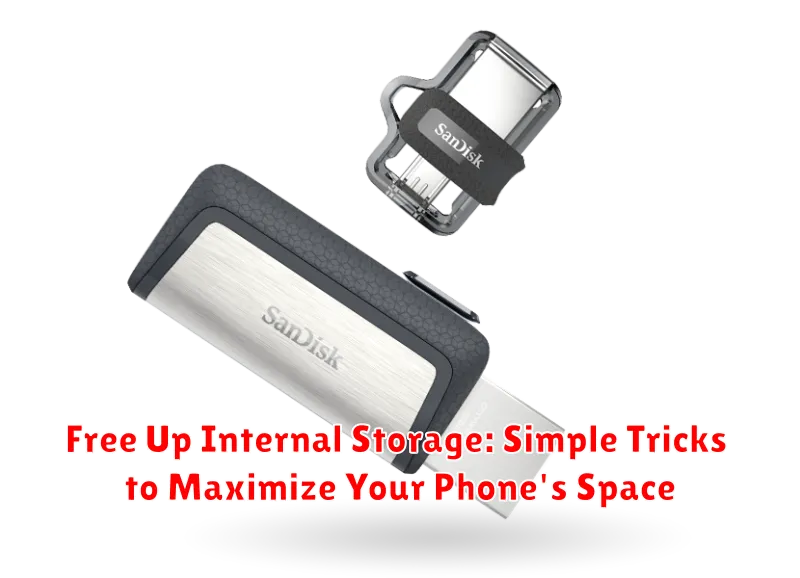
If your phone supports expandable storage via a microSD card, transferring data can significantly free up internal space. Photos, videos, and music are prime candidates for this move.
Most phones offer a built-in file manager to facilitate this process. Locate the files you wish to move, typically within their respective folders (e.g., DCIM for camera images). Select the desired files, then look for an option like “Move to” or “Copy to,” choosing your SD card as the destination.
Some apps also allow you to save downloaded content directly to the external storage. Check your app settings for options like “Storage Location” or “Download Path” to configure this preference where available.
Remember to check your phone’s documentation or online resources for specific instructions, as the process may vary slightly between devices and operating systems.
Delete Unnecessary Files
Over time, your phone accumulates various files that occupy valuable storage space. Identifying and removing these files can significantly free up space.
Downloaded Files
Check your downloads folder for files you no longer need, such as old installation packages, documents, or videos. Deleting these can reclaim a surprising amount of space.
Old Media Files
Review your photos and videos. Delete blurry pictures, duplicate shots, or videos you’ve already backed up. Consider using cloud storage services to keep your media safe while freeing up local storage.
Empty the Trash/Recycle Bin
Many phones have a trash or recycle bin feature. Remember to empty this regularly, as files stored here still occupy space.
Utilize Cloud Storage

Cloud storage offers a convenient way to offload files from your device without permanently deleting them. Services like Google Drive, iCloud, and Dropbox provide a certain amount of free storage, with options to upgrade for more space.
Moving photos and videos to the cloud is a particularly effective way to reclaim significant storage. Most cloud services offer automatic backup features, ensuring your media is safely stored and accessible across your devices. Consider enabling this feature to streamline the process.
Beyond media, documents and other files can also be stored in the cloud. This is especially useful for files you don’t access regularly but still want to keep. By moving these files to the cloud, you can free up valuable space on your device without losing access to them.
Compress Files
Compressing files is a highly effective method for reducing their size without permanently losing data. This is particularly beneficial for media files like photos and videos, which often consume significant storage space. Several techniques can be used to achieve this.
Zipping Files
Creating ZIP archives is a common compression method. By grouping multiple files into a single ZIP file, you can significantly reduce the overall storage footprint. Most modern operating systems, including Android and iOS, offer built-in capabilities or readily available apps for creating and extracting ZIP archives. This allows you to compress files before storing them and easily decompress them when needed.
Specialized File Compression
Certain file formats, especially images and videos, benefit from specialized compression techniques. For instance, converting images to formats like WEBP can substantially reduce their size while maintaining reasonable quality. Similarly, encoding videos with codecs designed for smaller file sizes can free up considerable space. Look for apps or software that specialize in compressing specific file types to optimize your storage savings.
