

Is your phone constantly dying before the end of the day? Are you tired of constantly searching for a charger? A major culprit behind rapid battery drain is often hidden in plain sight: background apps. These applications, even when not actively in use, can consume significant power, impacting your device’s battery life. This article will explore effective methods to stop background apps from draining your battery, helping you extend the time between charges and keep your phone powered up when you need it most. We’ll discuss how to identify battery-draining apps, manage background app activity, and implement power-saving settings to maximize your battery performance.
Reclaim control over your phone’s battery life and learn how to effectively manage background apps. We’ll cover techniques applicable to various devices and operating systems, offering practical solutions to stop background app refresh and optimize your battery usage. Whether you’re an Android user or an iPhone enthusiast, discover valuable tips and tricks to identify and manage power-hungry apps, ultimately extending the usability and lifespan of your battery. From restricting background app activity to utilizing built-in power-saving modes, this guide will provide you with the knowledge to keep your phone running longer on a single charge.
Identifying Battery-Draining Apps
Pinpointing the applications responsible for excessive battery consumption is the first step towards extending your device’s battery life. Modern operating systems offer built-in tools to help you identify these power-hungry apps.
On most devices, you can find a battery usage monitor within the settings menu. This feature typically provides a breakdown of battery consumption by app, displayed as a percentage or graphically. Pay close attention to apps consuming a disproportionately high percentage of battery, especially those you don’t actively use.
This battery usage information often includes details about foreground and background activity. Foreground activity refers to when you’re actively using the app, while background activity refers to processes the app runs even when you’re not directly interacting with it. High background activity can be a significant drain on your battery.
Some operating systems categorize battery usage by hardware components, such as the display, Wi-Fi, and cellular radio. This can help you determine if an app is causing excessive strain on a specific component, leading to increased power consumption.
Understanding Background App Activity
Background app activity refers to processes that apps perform even when you’re not actively using them. While some background activity is essential for app functionality, like receiving notifications or syncing data, excessive or unnecessary background activity can significantly drain your battery.
Apps engage in background activity for various reasons. Some apps frequently check for updates, while others maintain active network connections. Location services running in the background are a notorious battery drain. Push notifications, while convenient, also contribute to battery consumption. Understanding why apps run in the background helps you make informed decisions about which ones to restrict.
Identifying which apps are consuming excessive battery due to background activity can be challenging. Your device’s battery settings usually provide some insights into battery usage per app. However, this doesn’t always pinpoint the specific background processes responsible for the drain.
Restricting Background App Usage
Restricting background app usage offers a balanced approach, allowing apps to function somewhat in the background while limiting their battery consumption. This method is less extreme than completely disabling background activity but still provides significant battery savings.
Most modern operating systems provide built-in features for managing background app activity. Background restriction settings often allow you to choose between different levels of restriction for each app. For example, you can permit background activity only when the device is connected to Wi-Fi or restrict background data usage entirely while still allowing the app to sync periodically.
You can usually access these settings through your device’s settings menu, typically within the “Apps” or “Battery” section. From there, select the app you want to restrict and adjust the background activity permissions accordingly. Carefully consider the functionality of each app before restricting its background activity. Restricting essential apps like email clients or messaging apps could lead to delayed notifications.
Disabling Background Apps
Disabling background app activity can significantly extend your battery life. This prevents apps from using resources when you’re not actively using them. Note that disabling background activity may impact an app’s ability to deliver real-time notifications or updates.
The process for disabling background apps varies slightly depending on your device’s operating system. Generally, you can access these settings through the App Management or Battery Optimization sections within your device’s settings menu. Look for options like “Background activity,” “Background data usage,” or “Restrict background activity.”
Within these settings, you can usually choose to disable background activity for individual apps or for all apps. Review the list of apps and selectively disable those that you don’t need running in the background constantly. For example, social media apps or games are often prime candidates for background activity restriction.
Force Stopping Apps
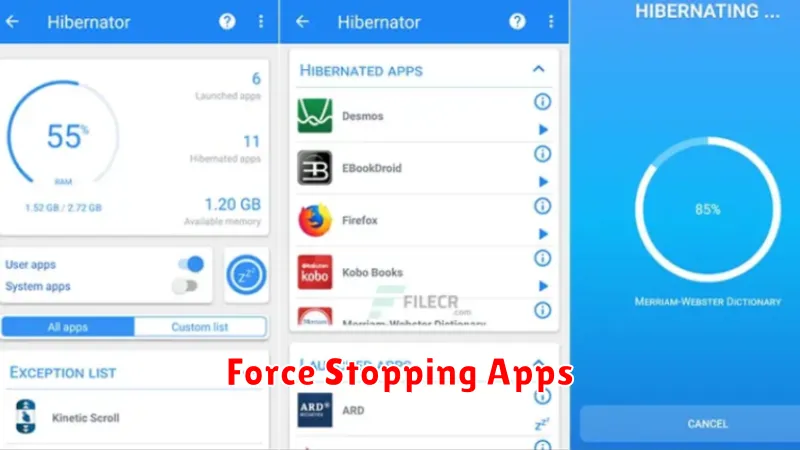
Force stopping an app prevents it from running in the background entirely until you manually open it again. This is a more aggressive approach than simply restricting background activity and should be used judiciously. While force stopping can save significant battery life in the short term, it can also interfere with app functionality, such as preventing notifications or syncing data.
To force stop an app on most Android devices, navigate to your device’s Settings, then select Apps. Choose the app you want to stop and tap Force Stop. Be aware that the system might restart the app under certain circumstances, such as if it’s tied to a core system process.
On iOS, force stopping an app is achieved by closing it from the app switcher. Double-click the home button (or swipe up from the bottom of the screen on newer iPhones) to access the app switcher, then swipe up on the app you want to close. Note that iOS handles background processes differently than Android, so force stopping is less impactful and primarily clears the app’s memory.
Optimizing Battery Usage in Settings
Your device’s settings menu offers a wealth of options for managing battery consumption. Battery usage statistics provide a detailed breakdown of which apps are consuming the most power. This allows you to identify power-hungry apps and take appropriate action.
Within battery settings, you can often find features like background activity restriction. This feature limits how much apps can operate in the background, significantly reducing their power draw. It’s crucial to understand that restricting background activity can impact app functionality; some apps may not deliver notifications or update data as frequently.
Another useful setting is adaptive battery or optimized battery usage. These features utilize machine learning to learn your usage patterns and intelligently manage app activity. By predicting which apps you’re less likely to use, the system preemptively limits their background processes to conserve power.
Using Battery Saver Mode Effectively
Battery saver mode is a powerful tool for extending your device’s battery life. It works by limiting background activity, reducing performance, and adjusting settings like screen brightness. Activating this mode can significantly prolong usage when your battery is running low.
Most devices allow you to customize how battery saver mode functions. You can often choose when it activates automatically, such as at a specific battery percentage. Understanding these customization options allows you to tailor battery saver mode to your specific needs.
While in battery saver mode, some apps might not update in the background, and notifications could be delayed. Be mindful of these limitations, especially if you rely on real-time updates from certain applications. Consider disabling battery saver mode when these functions are critical.
Adjusting App Sync Settings
App synchronization, while convenient for keeping data up-to-date across devices, can significantly impact battery life. Restricting background app sync for non-essential apps can help conserve power. Each operating system handles sync differently, so it’s important to understand your device’s specific settings.
Typically, you can find sync settings within the “Accounts” or “Applications” section of your device’s settings. From there, you can selectively disable background data usage for individual apps. Consider which apps truly require real-time updates. Do you need your social media feeds constantly refreshing, or can they wait until you actively open the app? Prioritize apps that require real-time data, such as email or messaging apps, if battery life is a primary concern.
Disabling automatic sync altogether is another option for maximum battery savings. This will prevent apps from syncing in the background entirely. You can then manually sync individual apps when needed, giving you complete control over data usage and battery consumption. Remember that while disabling sync conserves power, you may miss real-time notifications and updates.
Limiting Location Services Usage
Location services, while convenient, are a major drain on battery life. Many apps request access to your location, even when they don’t strictly need it. By managing these permissions, you can significantly extend the time between charges.
Review your location settings and restrict apps to using location services only when necessary. For many apps, the “While Using the App” option is sufficient. Avoid the “Always” setting unless absolutely essential for the app’s core functionality.
Consider disabling location services entirely when you’re not actively using apps that require them. This can be done through your device’s main settings. You can also disable location services for specific system services, such as location-based suggestions or Wi-Fi networking, which can also contribute to battery drain.
Regularly Updating Apps

While it might seem counterintuitive, regularly updating your apps can significantly contribute to extending your battery life. Developers frequently release updates that include performance enhancements and bug fixes, including optimizations that reduce battery consumption. These updates often address issues that could be causing an app to use excessive resources in the background.
By ensuring your apps are up-to-date, you benefit from the latest code improvements designed to make them more efficient. This can lead to a noticeable improvement in battery performance over time.
Most devices offer automatic updates. However, it’s good practice to periodically check for updates manually to ensure you’re running the most recent versions of all your applications.
